Lesson 5 - Formatting Slide in PowerPoint
- Home
- / Microsoft Powerpoint - Beginners
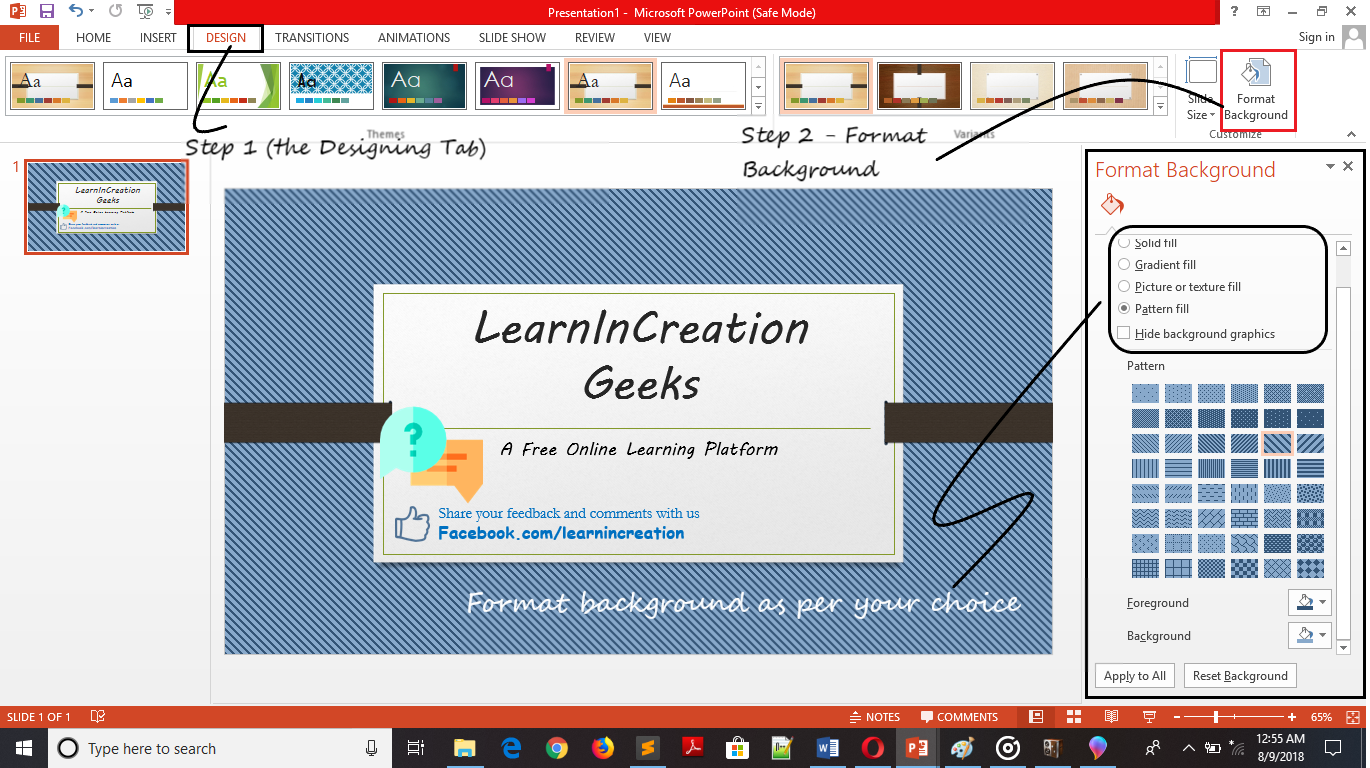
It’s very easy to format the slide background. You can customize your background by filling a solid color, or you can change solid color into a gradient color, or by designer pattern, or by setting picture in your slide background. Let us learn how to format it.
So, as a promise you are going to learn about Indent and tabs in this section. Indenting text or an entire paragraph is a good practice to make a beautiful presentation, somewhere user need to indent only first line to separate it from rest of the content. If you want to indent any other line from paragraph except first line then it also possible, it’s called a hanging indent.
If you want to indent first line in any paragraph then, you can do it simply with a Tab key. Place you cursor at the beginning of the paragraph and press Tab key.
To use indent more efficiently or in smart way use Indent marker, which gives you more control to indent your presentation.
Indent marker located to the left of the horizontal ruler. Enable ruler to view indent marker. To enable Ruler click on View tab and under Show section click on Ruler.
Here in indent marker you will see three marker. Let discuss each one –
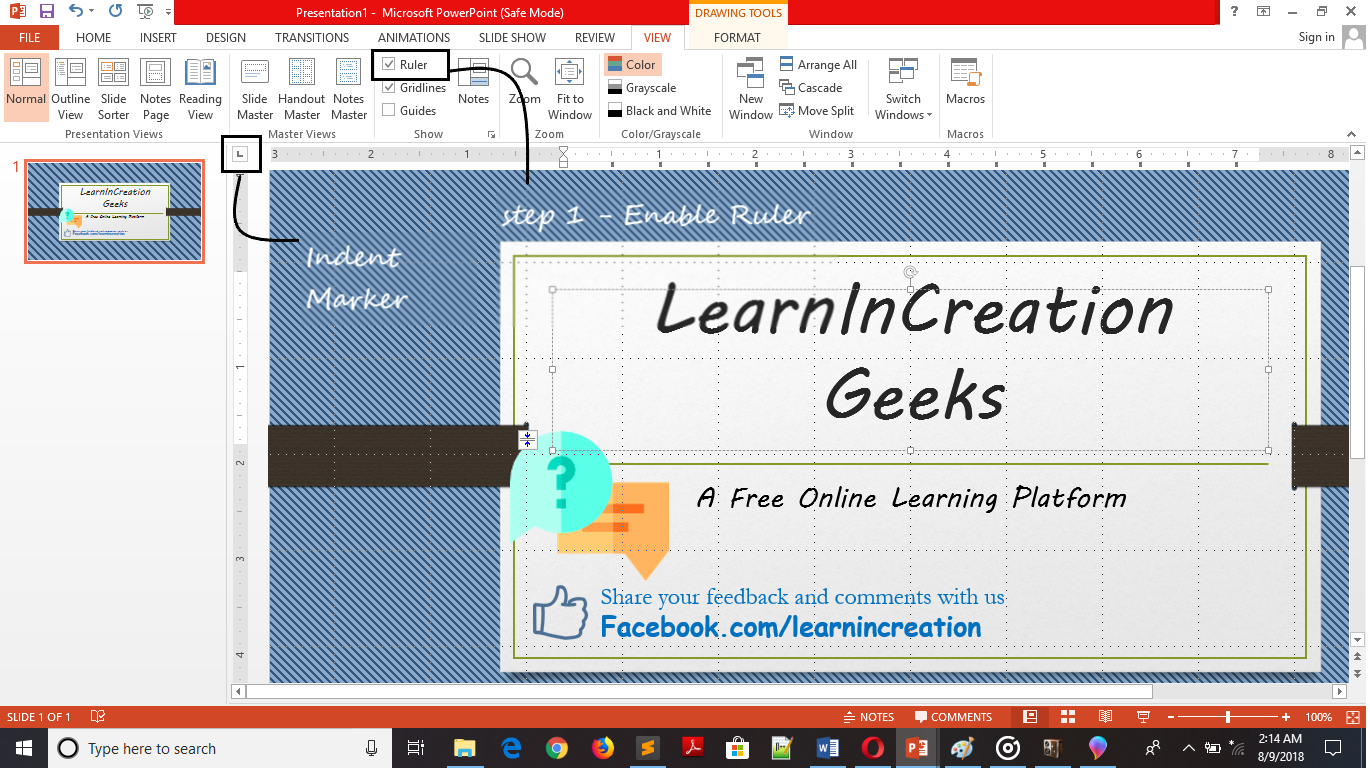
It’s used to adjust the first line indent.
It’s allow the user to indent the line other than first line.
Indent all lines in a paragraph (moves the both first line indent and hanging indent marker).
You can also indent your paragraph in slides simply, just by clicking on Increase indent or Decrease Indent button under Home tab in paragraph section.
Tabs gives you more control over text placement inside your documents, on pressing tab key it gives you the indent instantly. Depending on the cursor location tab key either create a first line indent or add a tab. If placed at the beginning of paragraph it gives a first line indent otherwise add a tab when placed in between the paragraph.
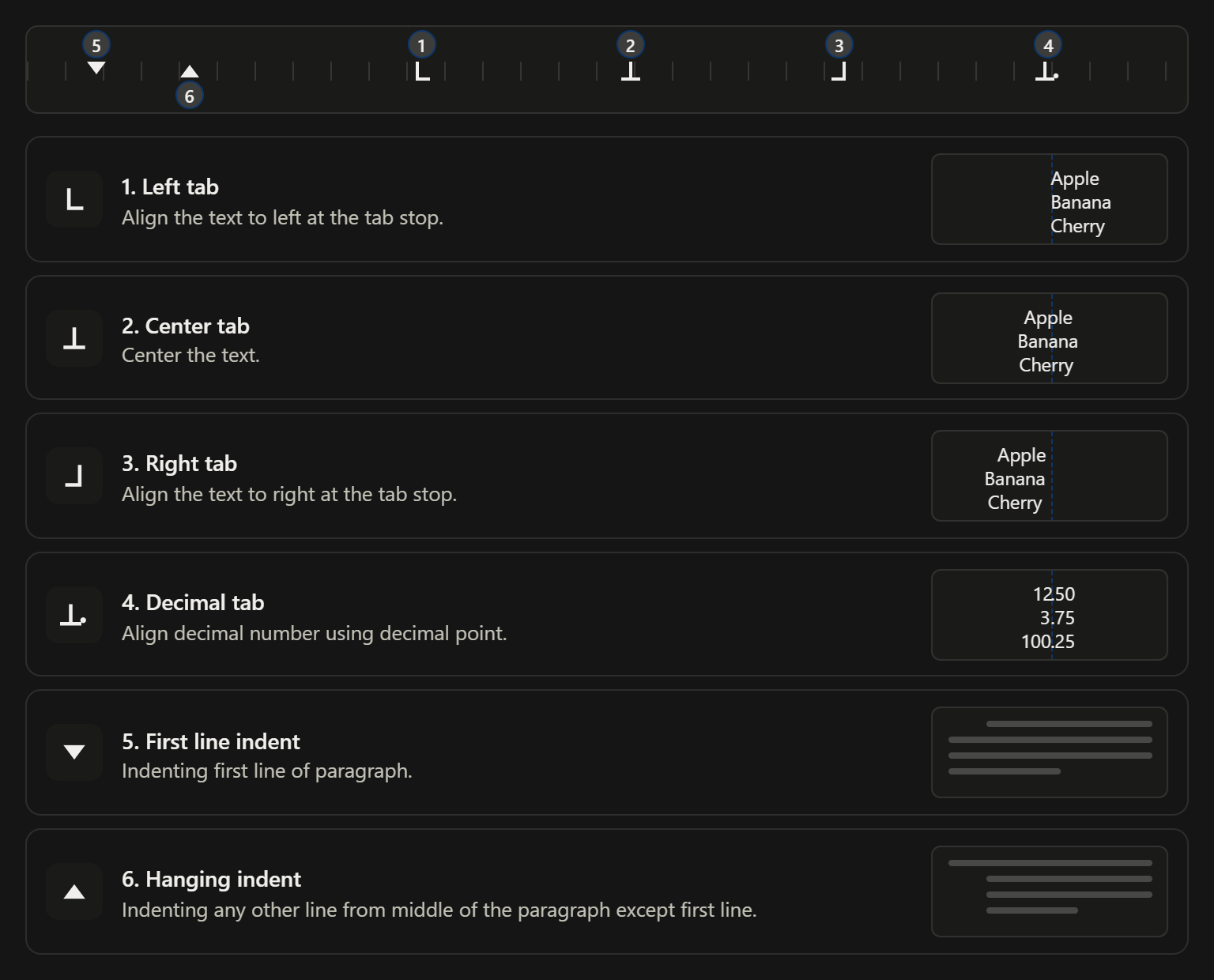
On the top of the window on left side at vertical ruler you will find a tab selector, which allow you choose different types of tabs.
Align the text to left at the tab stop.
Center the text.
Align the text to right at the tab stop.
Align decimal number using decimal point
Indenting first line of paragraph.
Indenting any other line from middle of the paragraph except first line.

Vinay Bhatt is the Founder of LearnInCreation, an education and technology platform focused on making computer science and digital learning simple, practical, and accessible. He holds a B.Sc. degree from Kumaun University and has professional certifications in Full Stack Web Development, Digital Marketing, and Ethical Hacking. Passionate about education and technology, he creates beginner-friendly courses, practical learning resources, and projects that help students develop real-world skills and prepare for their careers.


LearnInCreation helps students learn computer science and technology through easy-to-understand courses, practical projects, books, e-books like learning resources, enabling them to build skills for academic success and future careers.
Watch old videos of computer lessons, Subscribe us on Youtube