Lesson 8 - Ribbons in PowerPoint
- Home
- / Microsoft Powerpoint - Beginners
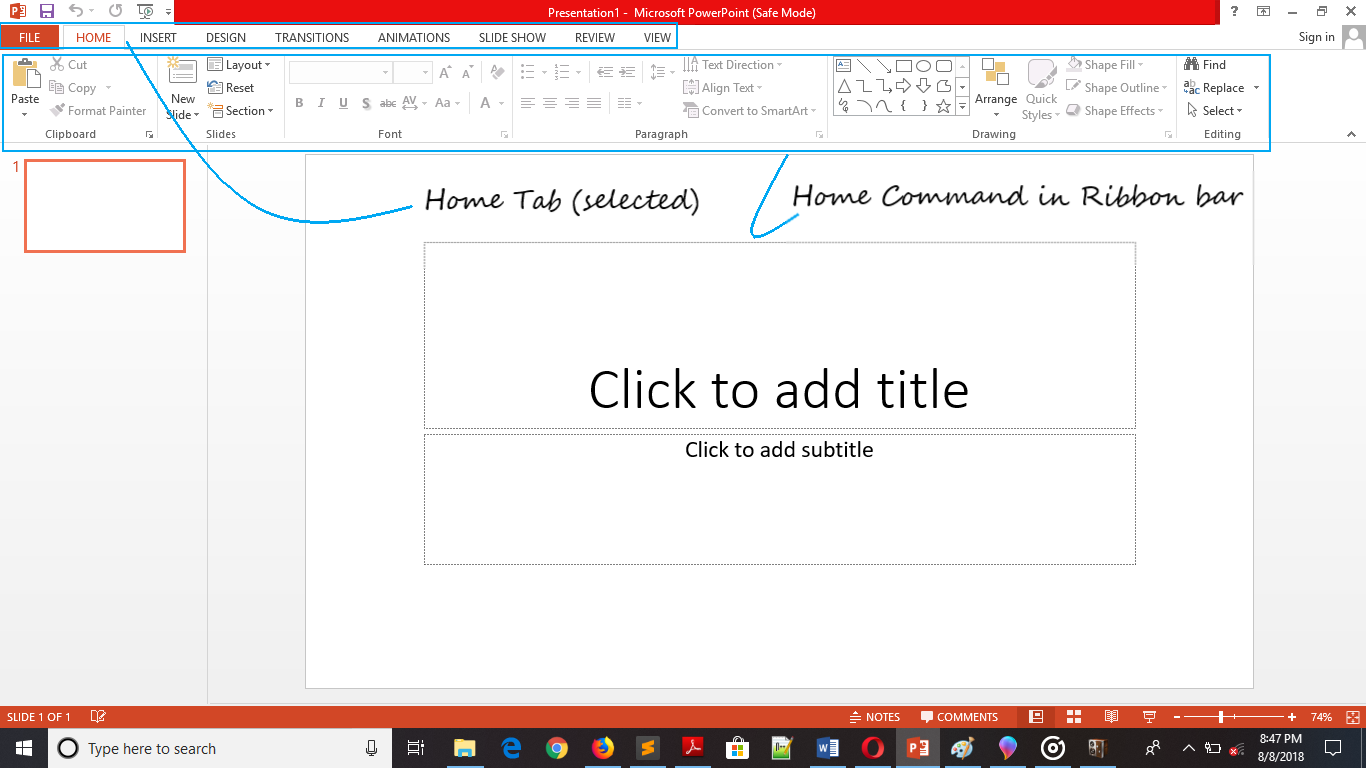
Ribbon is a tab system instead of menu bar. It contain multiple tab and each one contained group of several command used to create an effective presentation.
Now after definition, next we are going to explore it more. There are multiple tab in PowerPoint like, Home, Insert, Design, Page Layout, Reference, View etc. for your uses. Every tab contain a set of several command group which help you to make your presentation more attractive.
By default, whenever you open a PowerPoint, Home tab is selected and gives you access to its commands. You often need to move between tabs while you are creating or editing your presentation.
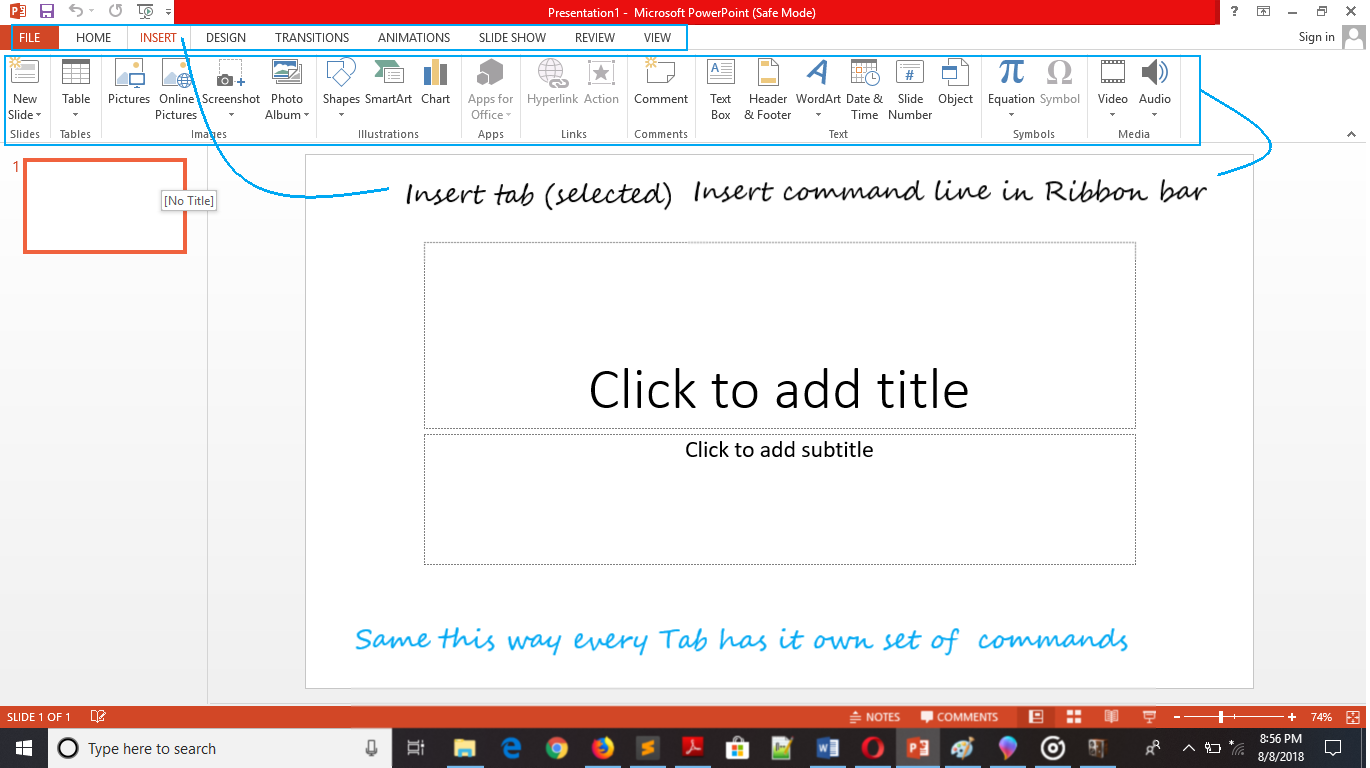
So, you learnt about Ribbon and its different tabs and also that how it is helpful to you? Here, we are going to learn customize Ribbon. You can hide the ribbon or commands, so let’s follow these simple steps to hide ribbons.
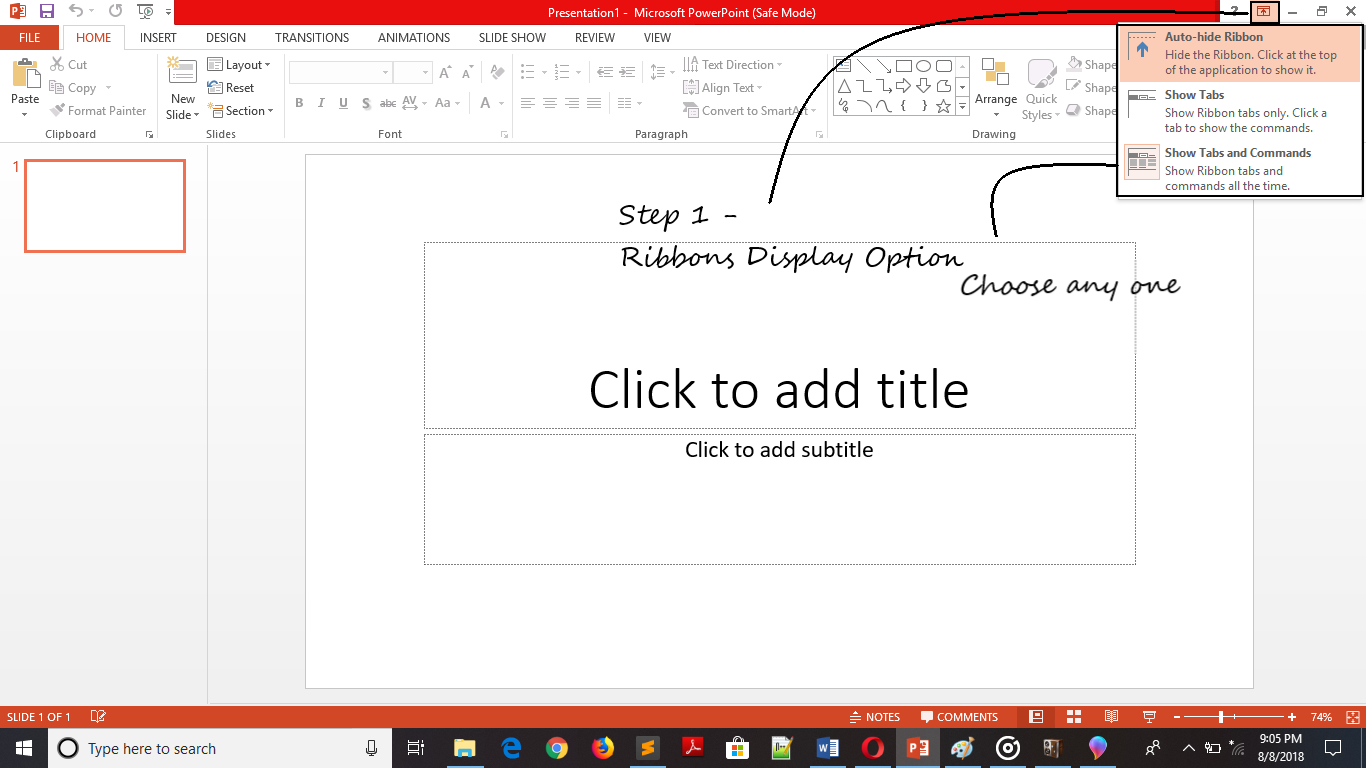
So, this is a way you can hide Ribbon from your PowerPoint screen. Now if you think that hiding the ribbon is not a good idea but you want to hide commands and only want to show Tabs so PowerPoint allows you to hide commands.
Follow these simple steps –
Now if you thinking that default way of ribbons and commands is best, then go to Ribbon Display Option and click on Show Tabs and Command option. Ribbon will again come in original or default manner.

Vinay Bhatt is the Founder of LearnInCreation, an education and technology platform focused on making computer science and digital learning simple, practical, and accessible. He holds a B.Sc. degree from Kumaun University and has professional certifications in Full Stack Web Development, Digital Marketing, and Ethical Hacking. Passionate about education and technology, he creates beginner-friendly courses, practical learning resources, and projects that help students develop real-world skills and prepare for their careers.


LearnInCreation helps students learn computer science and technology through easy-to-understand courses, practical projects, books, e-books like learning resources, enabling them to build skills for academic success and future careers.
Watch old videos of computer lessons, Subscribe us on Youtube