Lesson 9 - Text Alignment in Powerpoint
- Home
- / Microsoft Powerpoint - Beginners
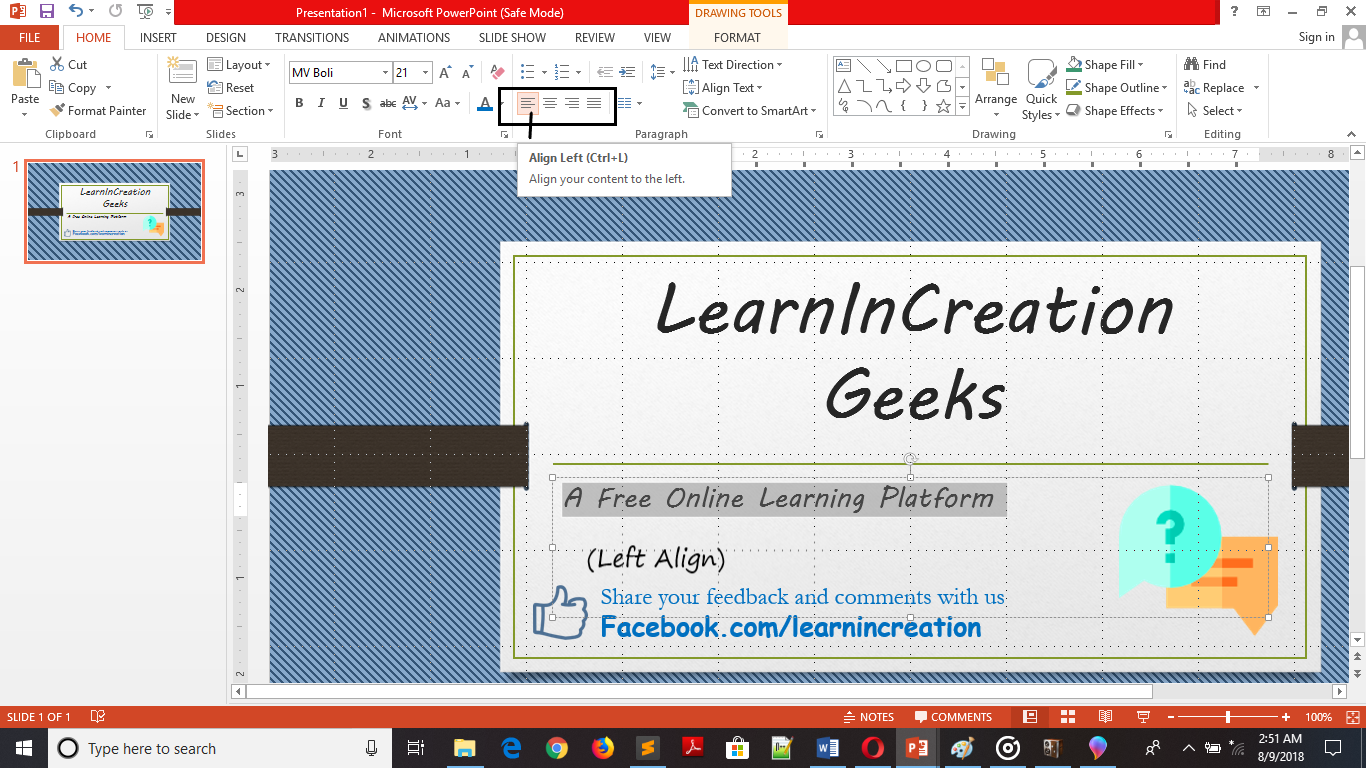
Alignment of text to its right position or according to slide layout gives a beautiful look to presentation. Well, you can align your text to –
Align text to the right side.
Align text to the left side.
Align text to the center.
Align text to both left and right margin.
To align your text to your desired location you have many ways. Either you can do this directly by selecting your text and then clicking on Align button located under Paragraph section.
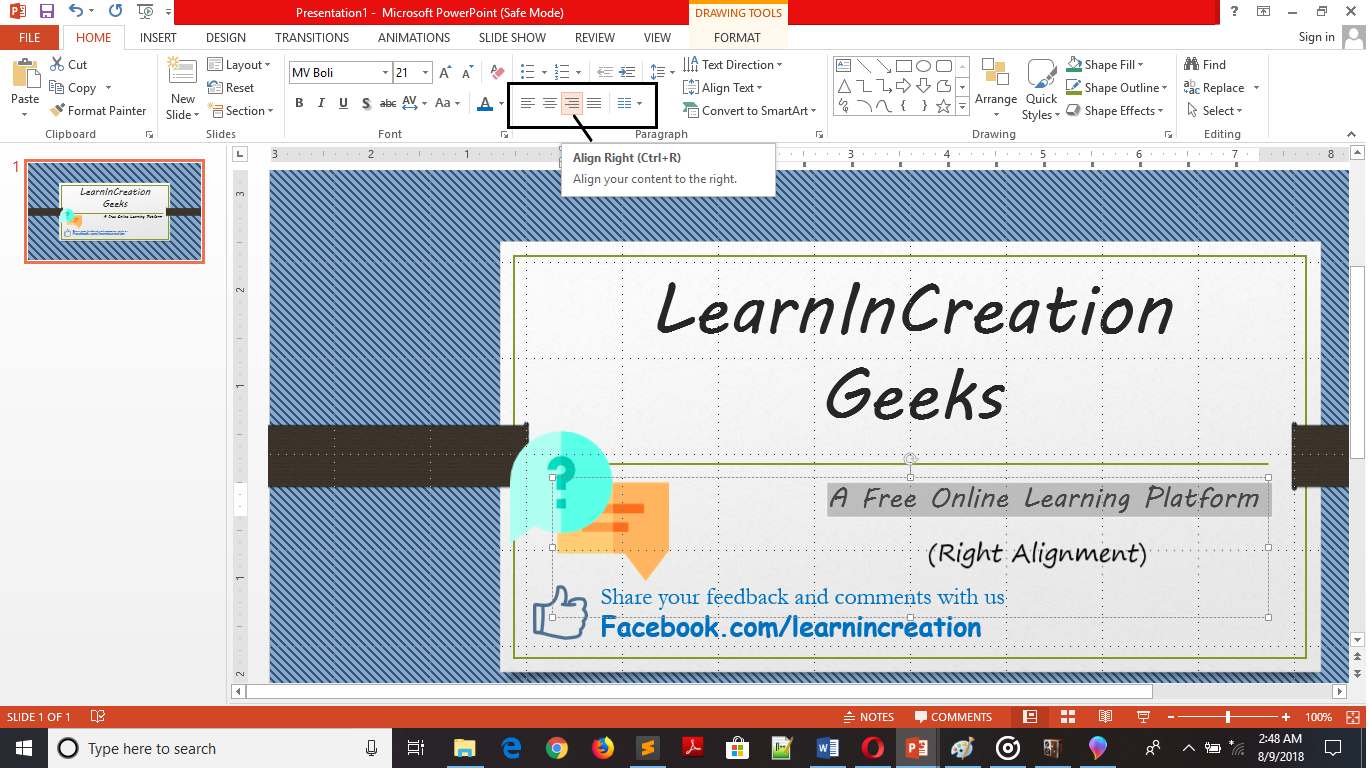
Or you can align your text to right by clicking on Line and Paragraph Spacing and selecting Right from the dropdown menu under Indent and spacing tab (left is selected by default). Similarly, you can align your text to center.
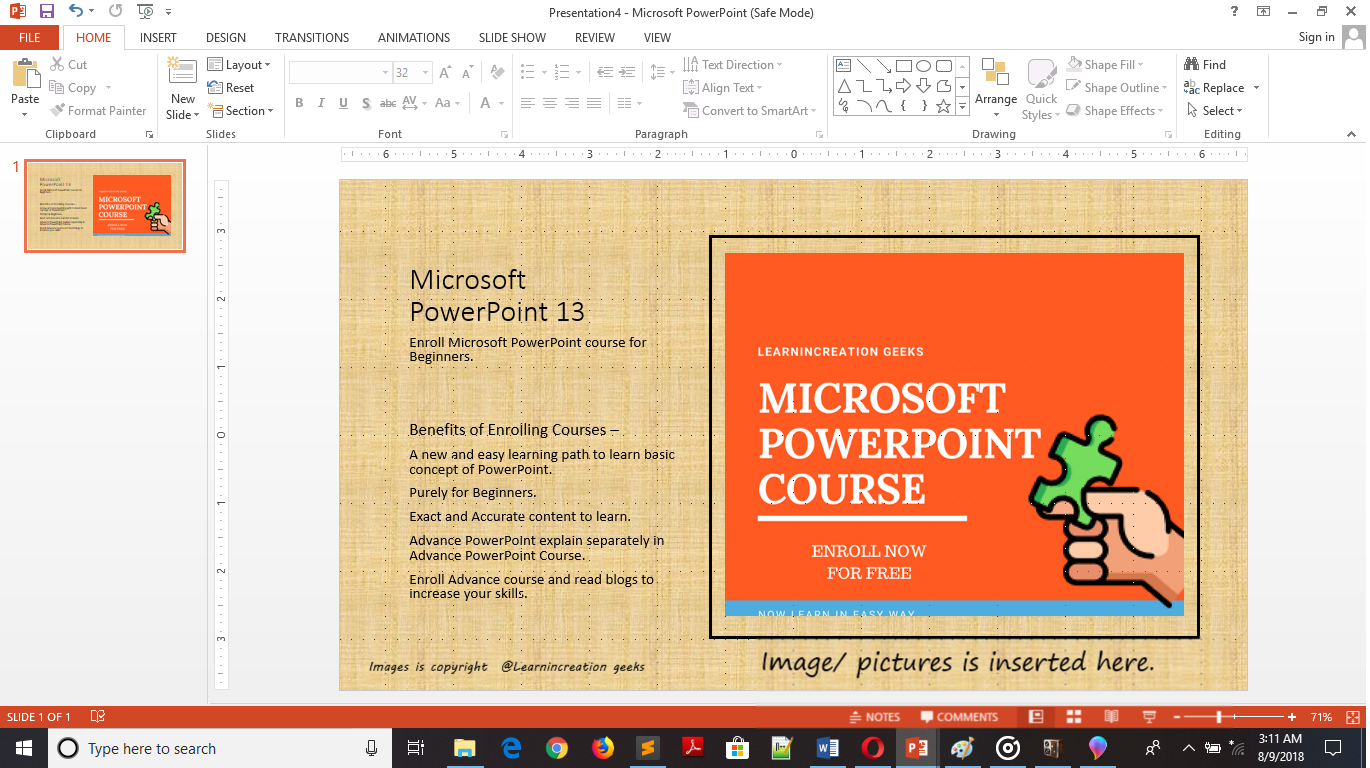
Picture speak more effectively than words. So it a good practice to speak via pictures. Also images register easily in human mind, so if you want to register you message in your audience mind then use a relevant picture to deliver your message.
Now, you learn what an importance of picture while you are deliver a message to an audience. So next step is to insert pictures in your presentation. Follow these simple steps to insert an images in your presentation –

Vinay Bhatt is the Founder of LearnInCreation, an education and technology platform focused on making computer science and digital learning simple, practical, and accessible. He holds a B.Sc. degree from Kumaun University and has professional certifications in Full Stack Web Development, Digital Marketing, and Ethical Hacking. Passionate about education and technology, he creates beginner-friendly courses, practical learning resources, and projects that help students develop real-world skills and prepare for their careers.


LearnInCreation helps students learn computer science and technology through easy-to-understand courses, practical projects, books, e-books like learning resources, enabling them to build skills for academic success and future careers.
Watch old videos of computer lessons, Subscribe us on Youtube