Lesson 12 - Customize Tables in PowerPoint
- Home
- / Microsoft Powerpoint - Advanced
Once you inserted your table, you can customize it anytime. You can customize its styles, border, effect etc. Also you can resize your table on click and drag from the corner, according to a space or layout.
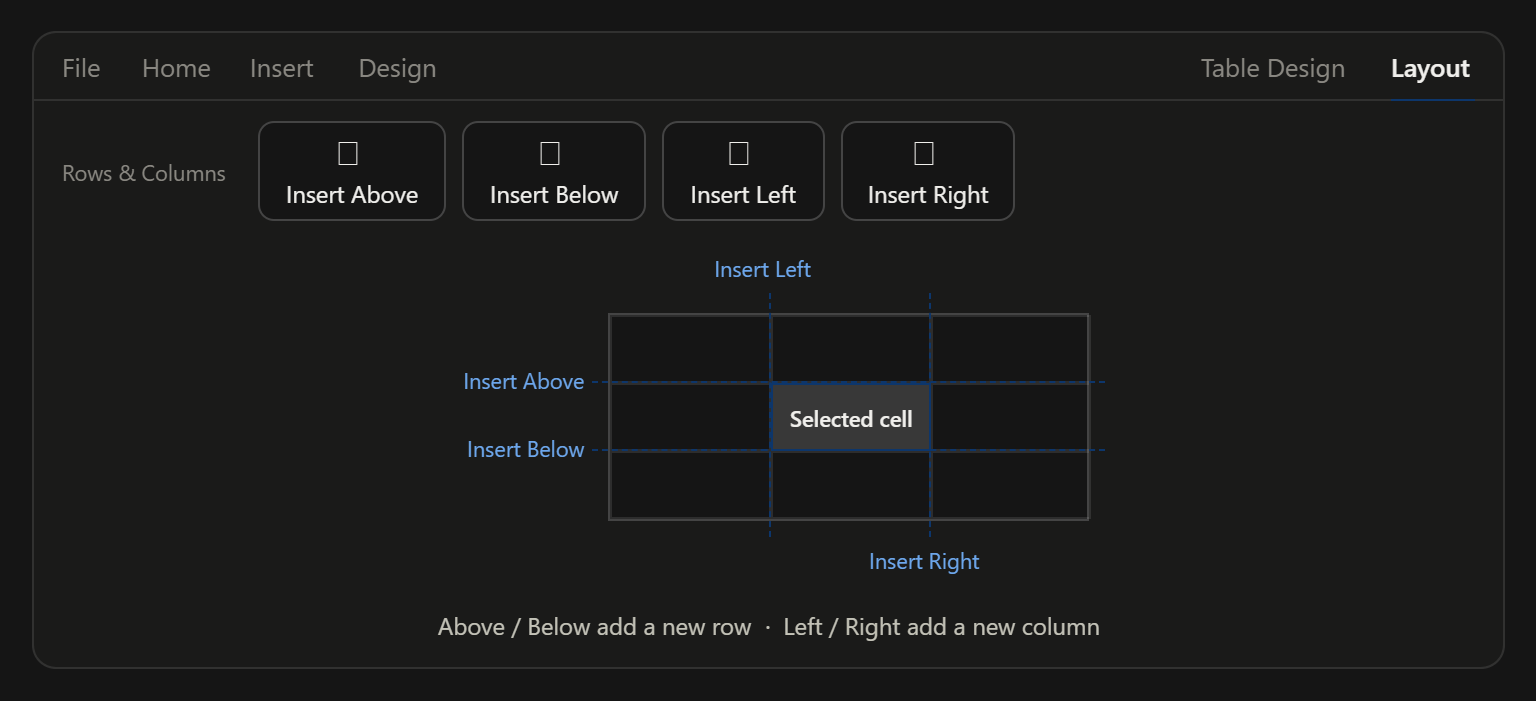
You can move your table, you can add or delete an entire columns or row. Here, we learn to add or delete an entire row or column.
To add a row or column in your table you need to proceed through given steps –
To delete a row, a column or an entire table, click any cell in that row or column (or anywhere in the table to delete the whole table). Then go to the Layout tab and click the Delete command in the Rows & Columns group. A list opens with three options: Delete Columns, Delete Rows and Delete Table. Choose the one you need.

Vinay Bhatt is the Founder of LearnInCreation, an education and technology platform focused on making computer science and digital learning simple, practical, and accessible. He holds a B.Sc. degree from Kumaun University and has professional certifications in Full Stack Web Development, Digital Marketing, and Ethical Hacking. Passionate about education and technology, he creates beginner-friendly courses, practical learning resources, and projects that help students develop real-world skills and prepare for their careers.


LearnInCreation helps students learn computer science and technology through easy-to-understand courses, practical projects, books, e-books like learning resources, enabling them to build skills for academic success and future careers.
Watch old videos of computer lessons, Subscribe us on Youtube