Lesson 10 - SmartArt and Chart in PowerPoint
- Home
- / Microsoft Powerpoint - Advanced
Well it’s a time to add some graphics in your presentation, which makes your document more attractive and interactive while reading.
SmartArt is again a very nice tool, which allow you to speak by use graphics instead of text to communicate with your audience more effectively. So it’s a good tool which make you presentation friendly to viewer.
Well you ask a valid question, and in a next paragraph you will get a steps to insert it in your slide. So follow these simple steps and learn to speak in a language of graphics.
Presentation allows to use charts in your slides and with the help of chart you can shows the data in more relevant way. Charts are used to show graphs in a reports. There are many types of charts in a PowerPoint to express you data more effectively. In the below section you can see a types of charts in PowerPoint.
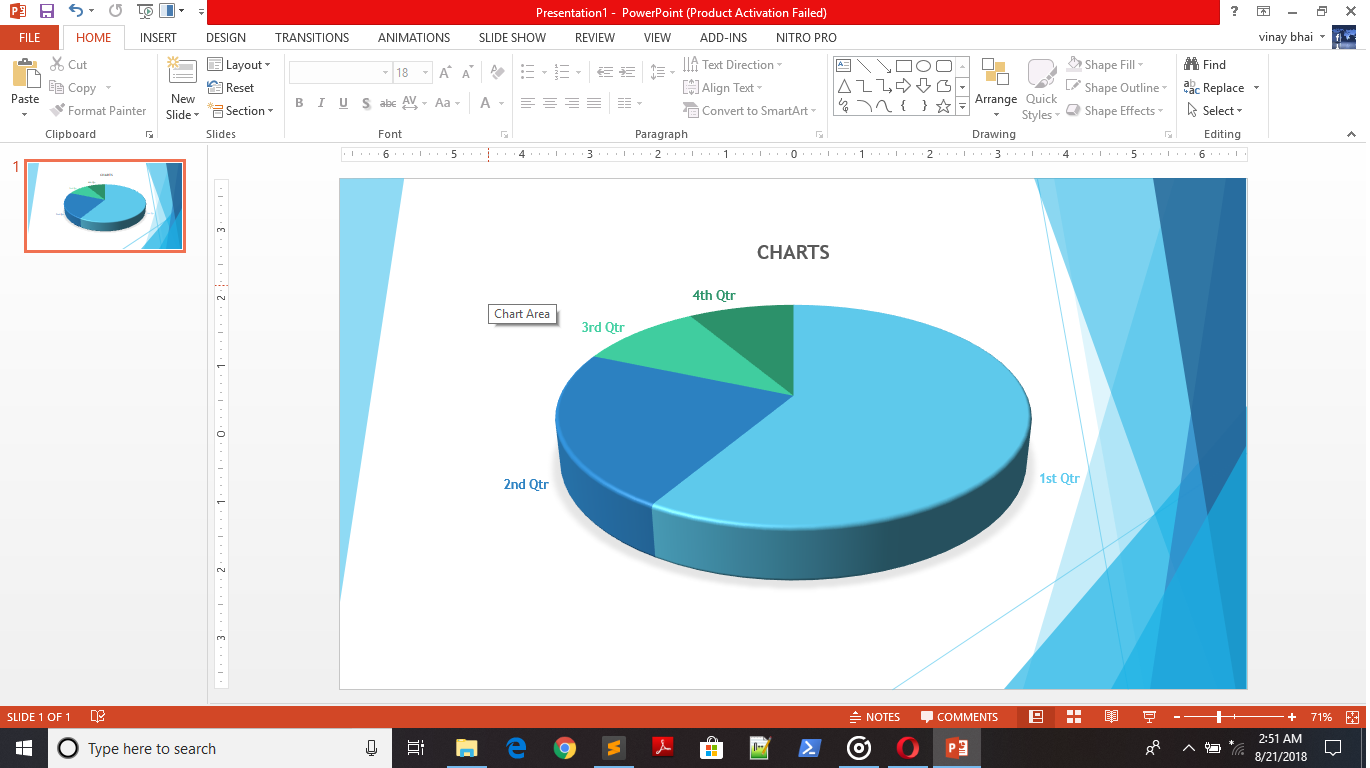
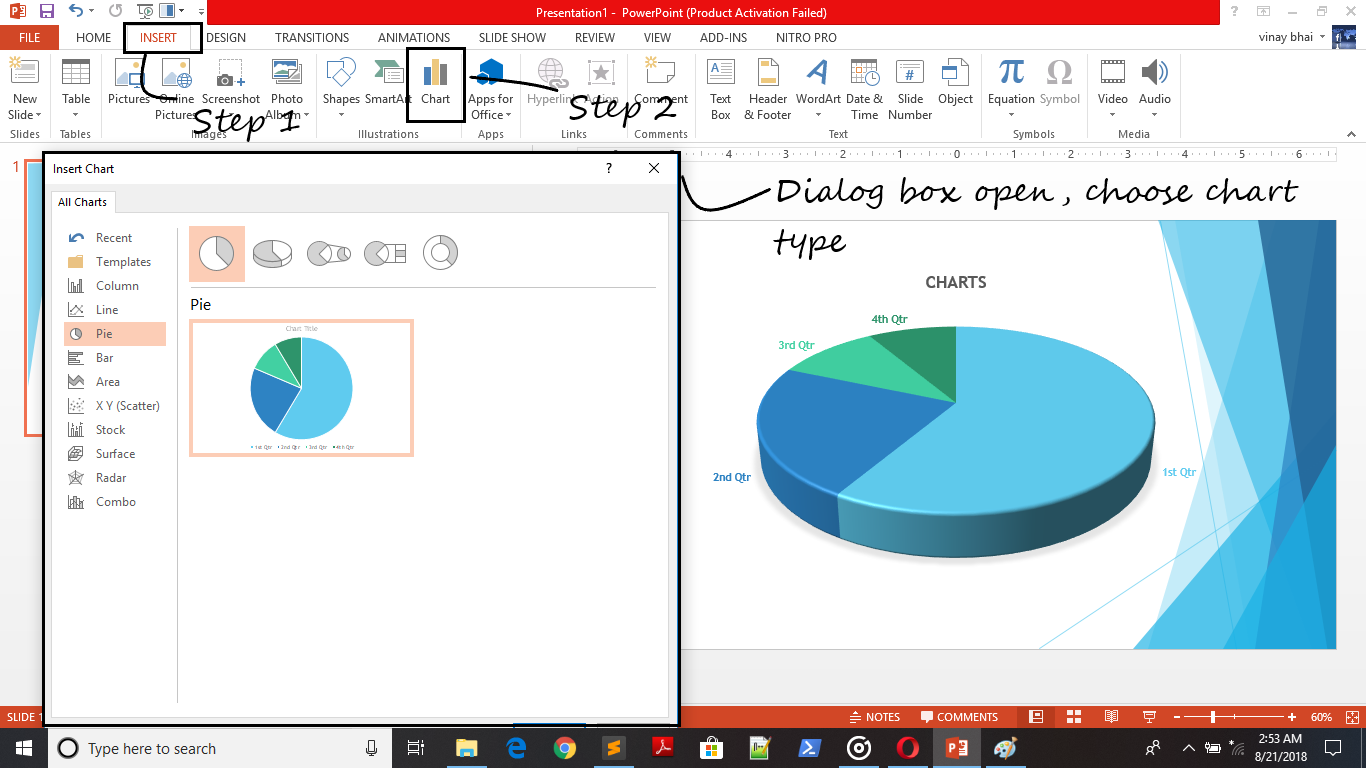
Perform the following steps to insert a charts in slides –
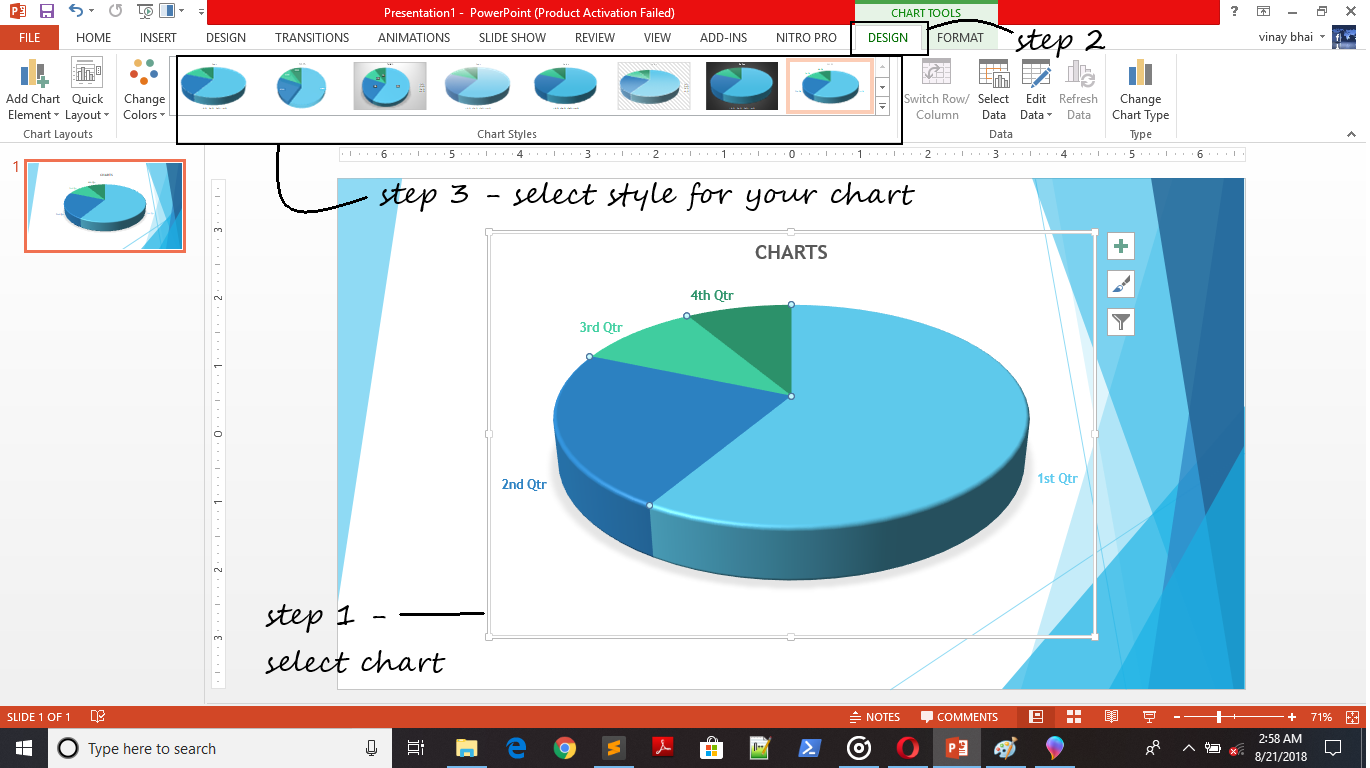
You can edit your data anytime, just by clicking on chart and to select the Edit data command under Data section inside a Design tab.
To change or customize a chart style you can simply choose any style of your choice from Chart Style section under Design tab.
You can change or customize the chart color, chart layout, chart type etc. just by clicking on command under Design tab to give a better appearance to your presentation.
Also, if you want to share your knowledge and experience with others then send us your presentation with hashtag #ShareYourKnowledge. If your presentation is really good, we share it on our website with your name and details.
Because we not only want to learn new skills, we want to share our skills also. #ShareYourKnowledge

Vinay Bhatt is the Founder of LearnInCreation, an education and technology platform focused on making computer science and digital learning simple, practical, and accessible. He holds a B.Sc. degree from Kumaun University and has professional certifications in Full Stack Web Development, Digital Marketing, and Ethical Hacking. Passionate about education and technology, he creates beginner-friendly courses, practical learning resources, and projects that help students develop real-world skills and prepare for their careers.


LearnInCreation helps students learn computer science and technology through easy-to-understand courses, practical projects, books, e-books like learning resources, enabling them to build skills for academic success and future careers.
Watch old videos of computer lessons, Subscribe us on Youtube