Lesson 9 - Working With Text in PowerPoint
- Home
- / Microsoft Powerpoint - Advanced
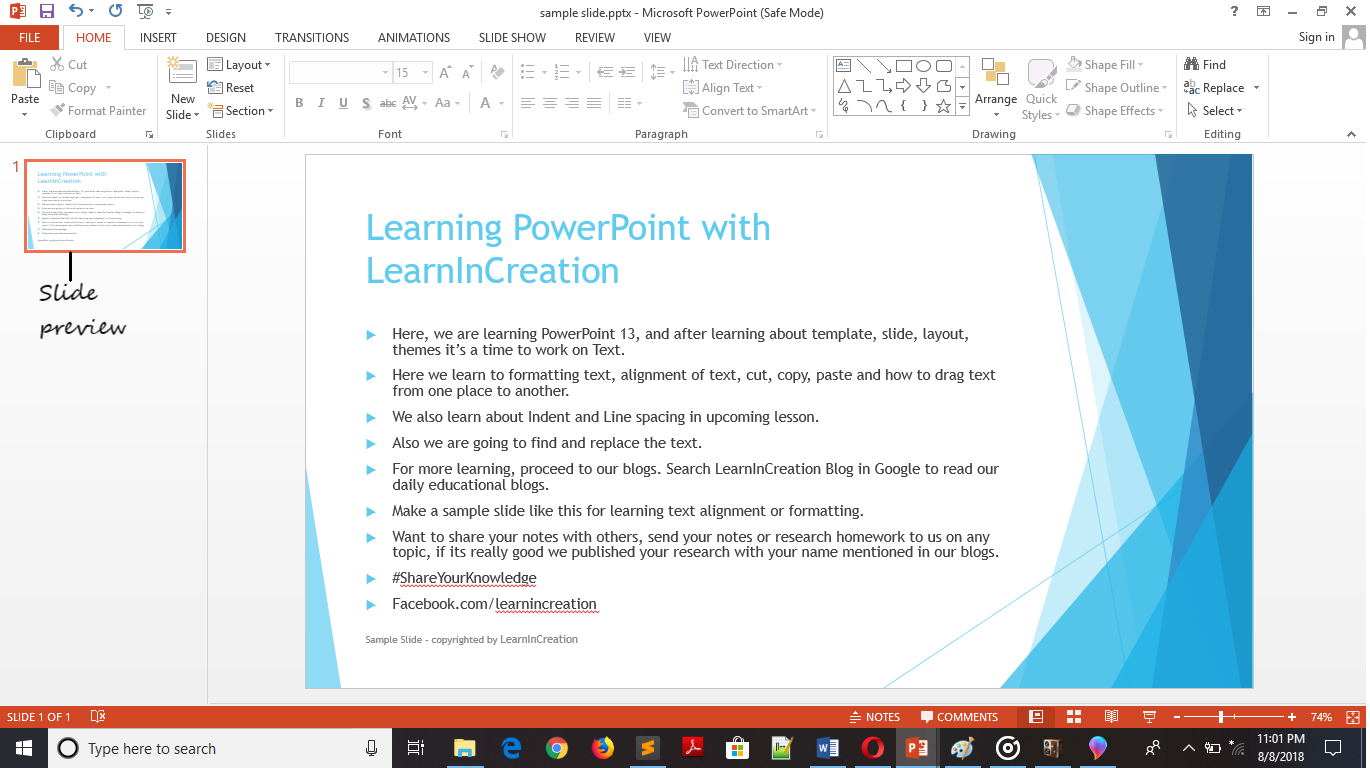
Here, in this lesson you are going to learn formatting your text, align your text, cut, copy, paste or drag your text from one place to another. Also you will learn to find and replace your text.
But before learning all these you need to write text in your slides in order to format, align, cut, copy, paste or drag it.
So, create a simple title slide as we made for you.
See slide (sample slide in desktop)
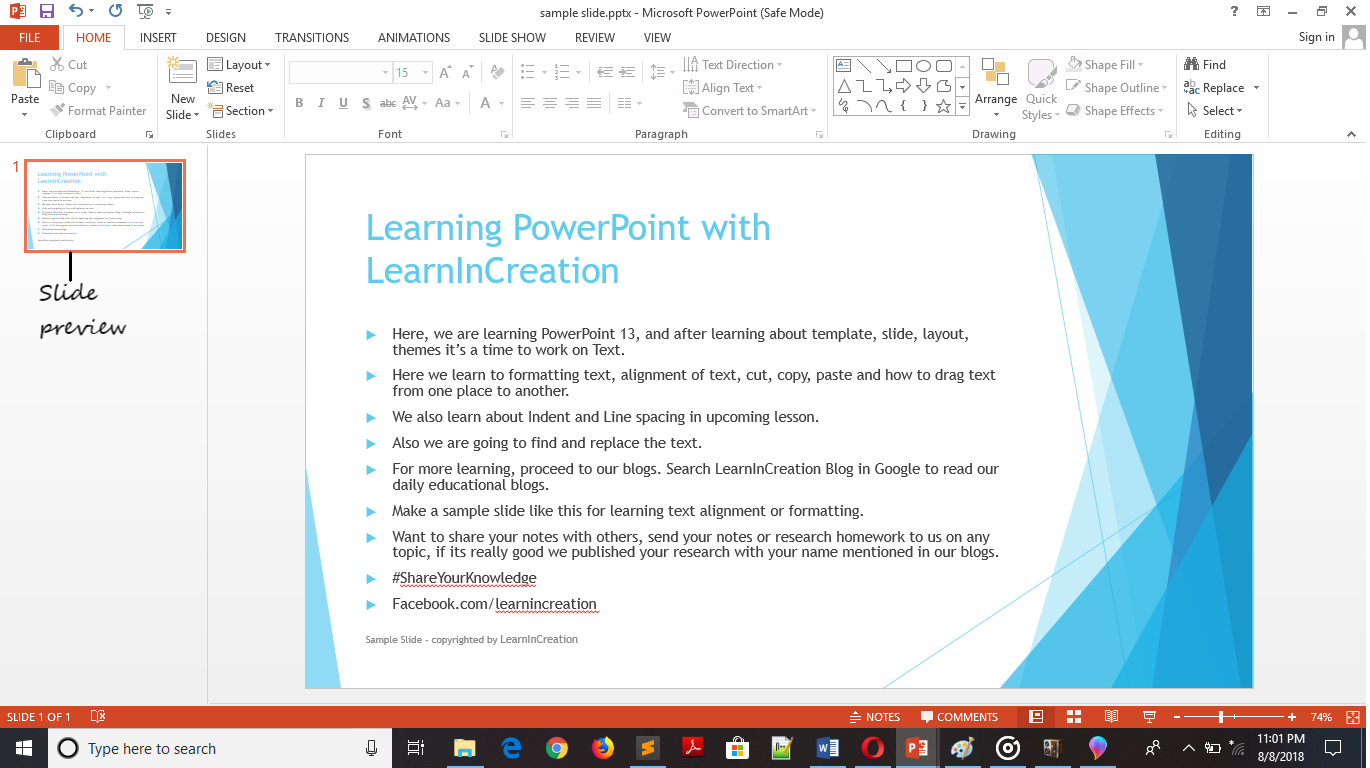
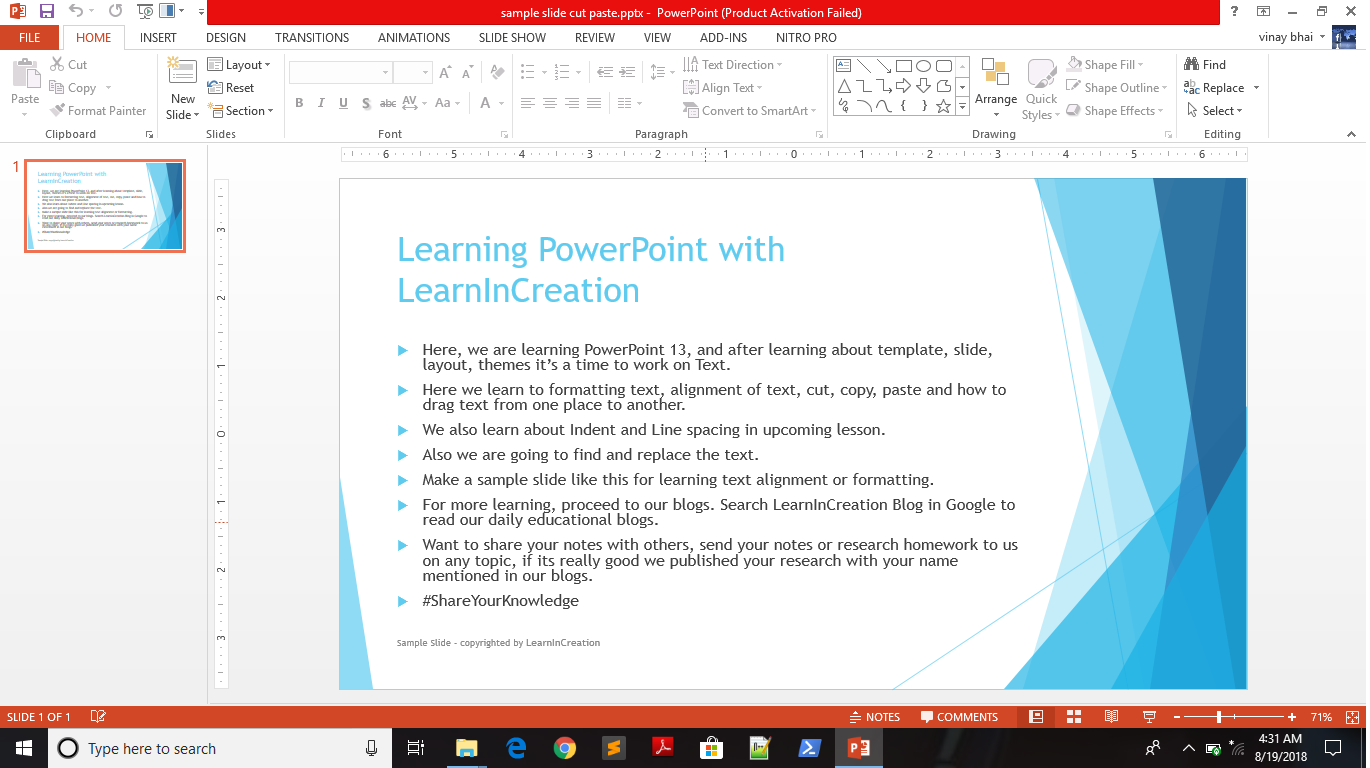
You can cut your text from its original position and paste it to its new position. To cut your text from one place and paste it to another place, you need to follow these simple steps –
Here, in below sample slide you can see that the line on fifth position (see above sample slide) is now on sixth position (see below sample slide). The set of order is change because fifth line will be cut and paste to new position.
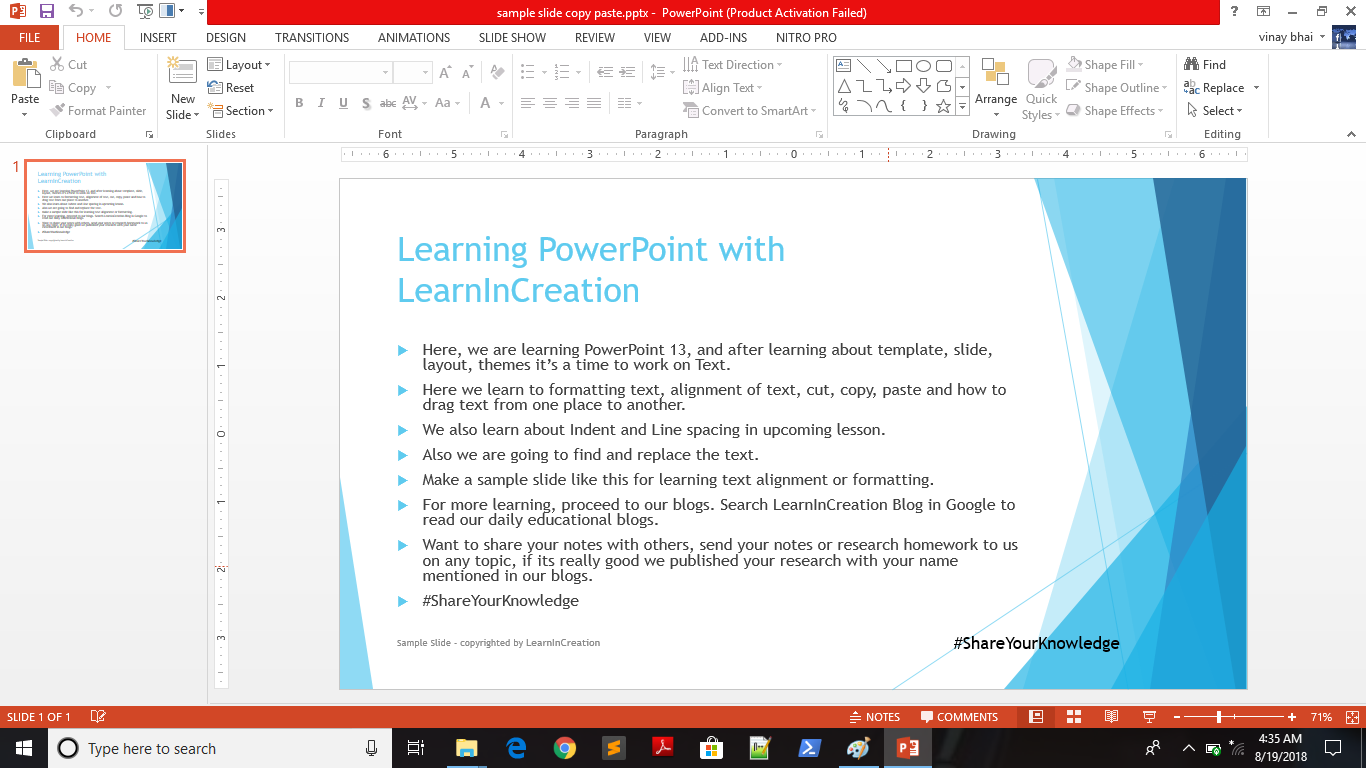
You can copy your text from its older position and paste it to its new position. To copy your text from one place and paste it to another place, you need to follow these simple steps –
Here, in below sample slide you can see that slide message #ShareYourKnowledge (see above sample slide) is copy and pasted in front of copyright message at right side (see below sample slide).
Copy command is useful when you need a same text or sentence at more than one place in a same slide. It’s better to copy and paste your text instead of writing it everytime.
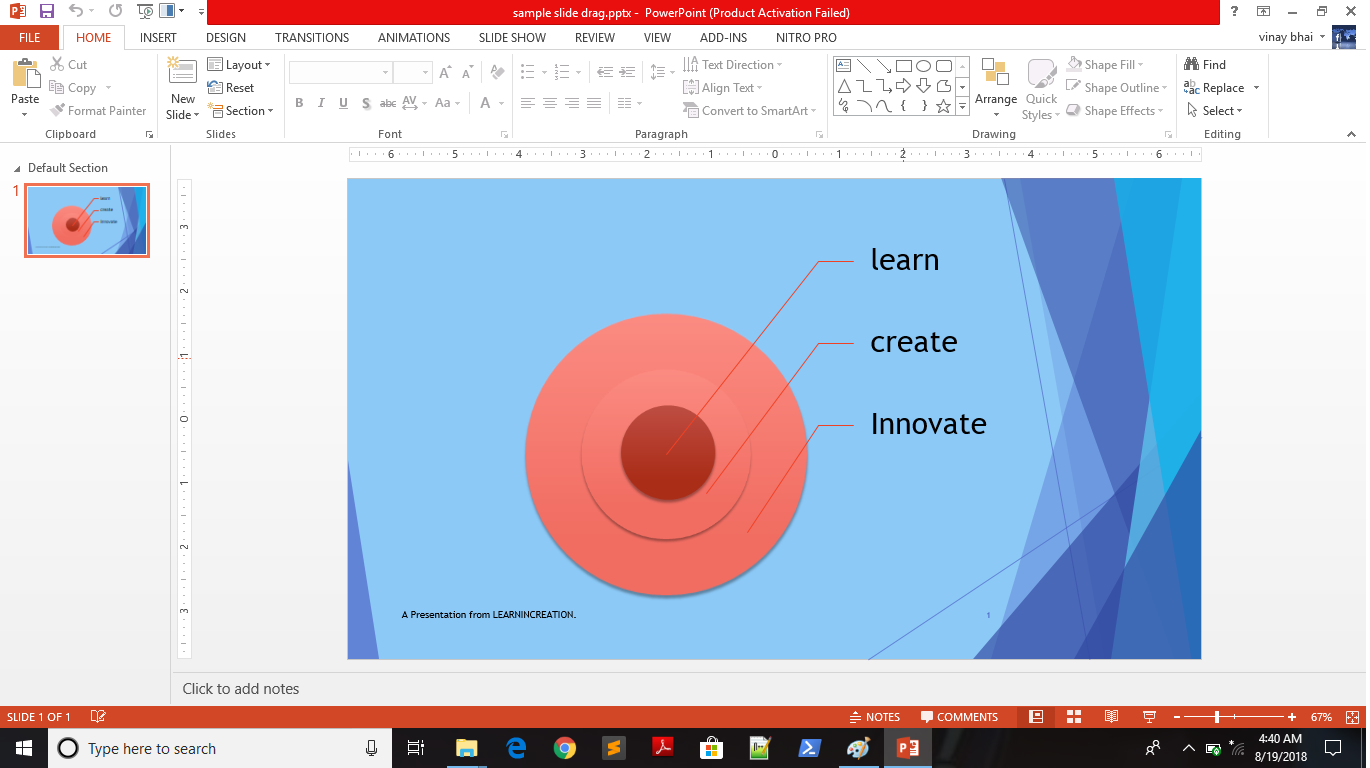
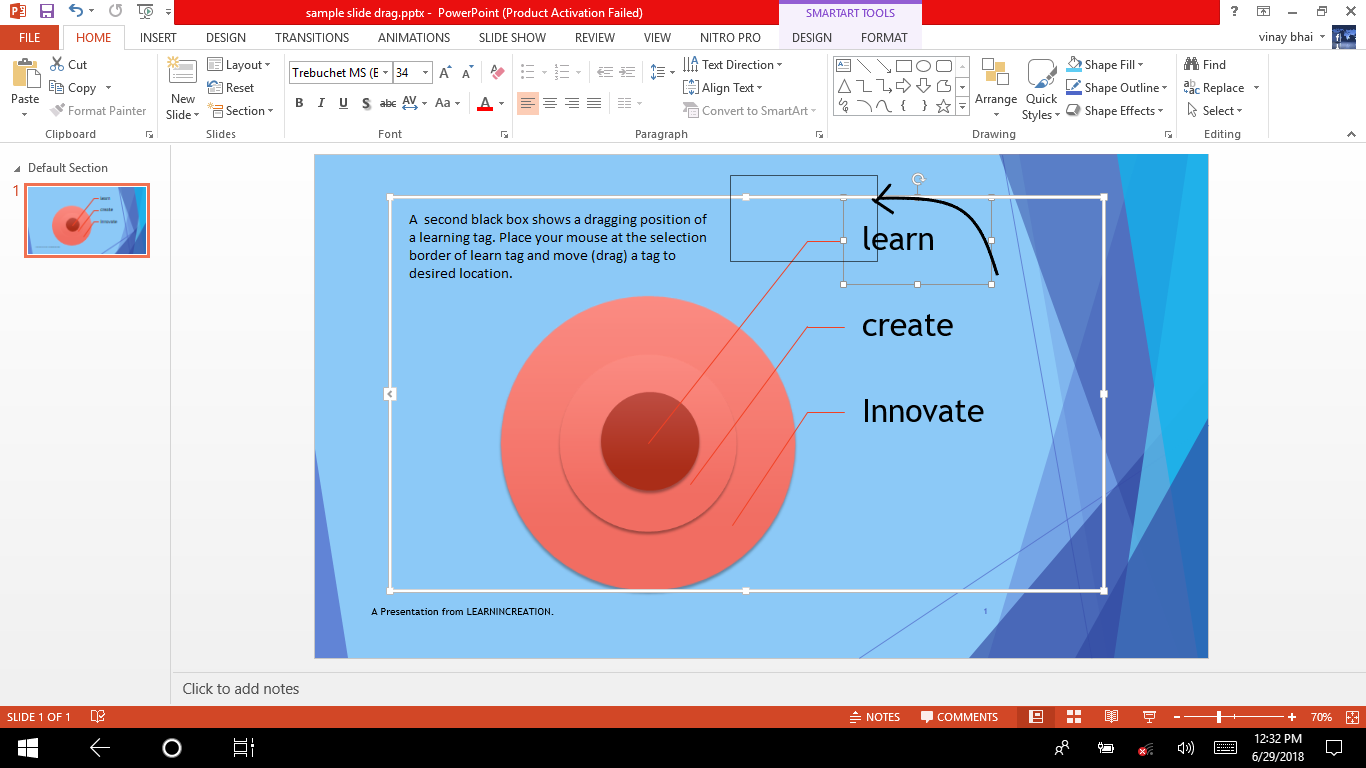
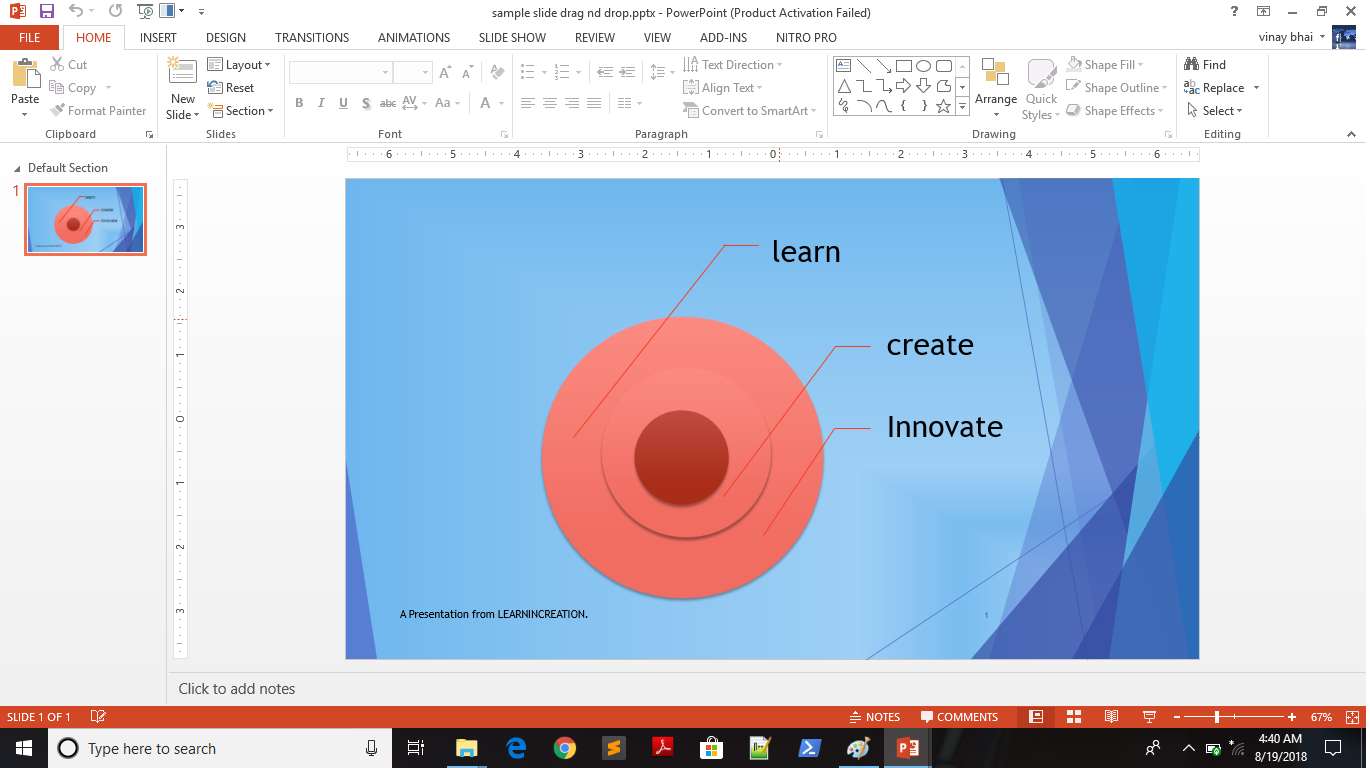
You can drag your text from one place to another as you needed. Follow these simple steps to drag your text or image –
See the below sample slide, the position of learn tag is drag from its original position in second slide.

Vinay Bhatt is the Founder of LearnInCreation, an education and technology platform focused on making computer science and digital learning simple, practical, and accessible. He holds a B.Sc. degree from Kumaun University and has professional certifications in Full Stack Web Development, Digital Marketing, and Ethical Hacking. Passionate about education and technology, he creates beginner-friendly courses, practical learning resources, and projects that help students develop real-world skills and prepare for their careers.


LearnInCreation helps students learn computer science and technology through easy-to-understand courses, practical projects, books, e-books like learning resources, enabling them to build skills for academic success and future careers.
Watch old videos of computer lessons, Subscribe us on Youtube