Lesson 8 - Formatting Text
- Home
- / Microsoft Word - Beginners
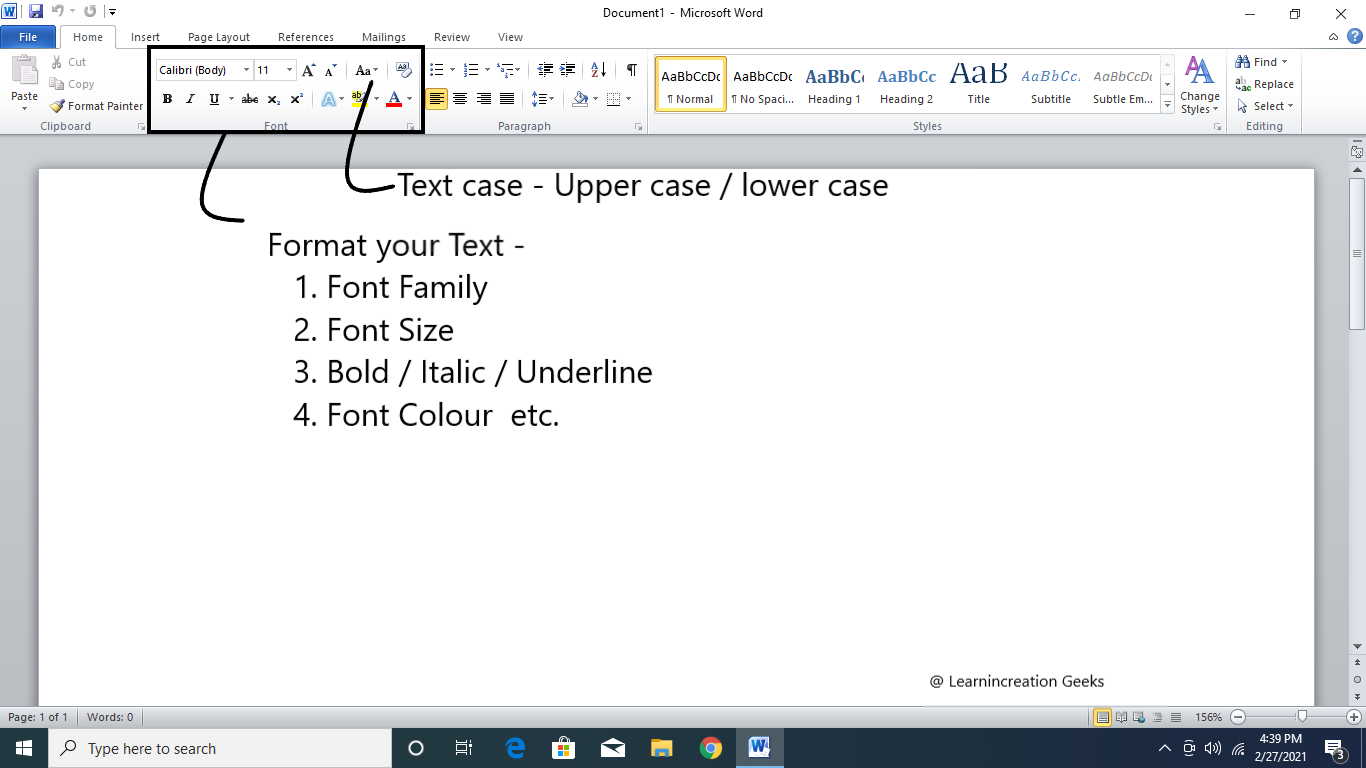
Now after adding and formatting page number and symbol it’s a time to format your text in document to make it’s easy to read and understand. For this Word allow you to change the case of letters in text.
Here is five ways to change the case of text –
Now read one by one about these case –
When you writing any text in your notebook, every first word of a sentence is capital. Right? It’s works as same. First letter of first word in every sentence is capital. (Example – Ram is good boy. He love to play cricket.)
Its convert all letter as smalls letters (Example - ram is a good boy.) All are in lowercase.
It change all letter in capitals or in Uppercase (Example – RAM IS A GOOD BOY.)
Also known as Title case. It change the first letter of each word to capital in selected text. (Example – Ram Is Good Boy.)
Its allow you to toggle between lower and uppercase, means selected text can be change to uppercase if it is in lower or vice versa.
If you are reading this line means you are still focused and not get bored yet. So before you getting bored just take a break and revised what you learned. Make your own document in lowercase and do the change in it.
It’s a small exercise, to remind you whatever you learn. Also you can submit your document to me if it really nice then we show it to our all student to encourage them, inspire them to practice. It’s good to Learn, but it’s important to Share.

Vinay Bhatt is the Founder of LearnInCreation, an education and technology platform focused on making computer science and digital learning simple, practical, and accessible. He holds a B.Sc. degree from Kumaun University and has professional certifications in Full Stack Web Development, Digital Marketing, and Ethical Hacking. Passionate about education and technology, he creates beginner-friendly courses, practical learning resources, and projects that help students develop real-world skills and prepare for their careers.


LearnInCreation helps students learn computer science and technology through easy-to-understand courses, practical projects, books, e-books like learning resources, enabling them to build skills for academic success and future careers.
Watch old videos of computer lessons, Subscribe us on Youtube