Lesson 7 - Quick Access Toolbar & Ruler
- Home
- / Microsoft Word - Beginners
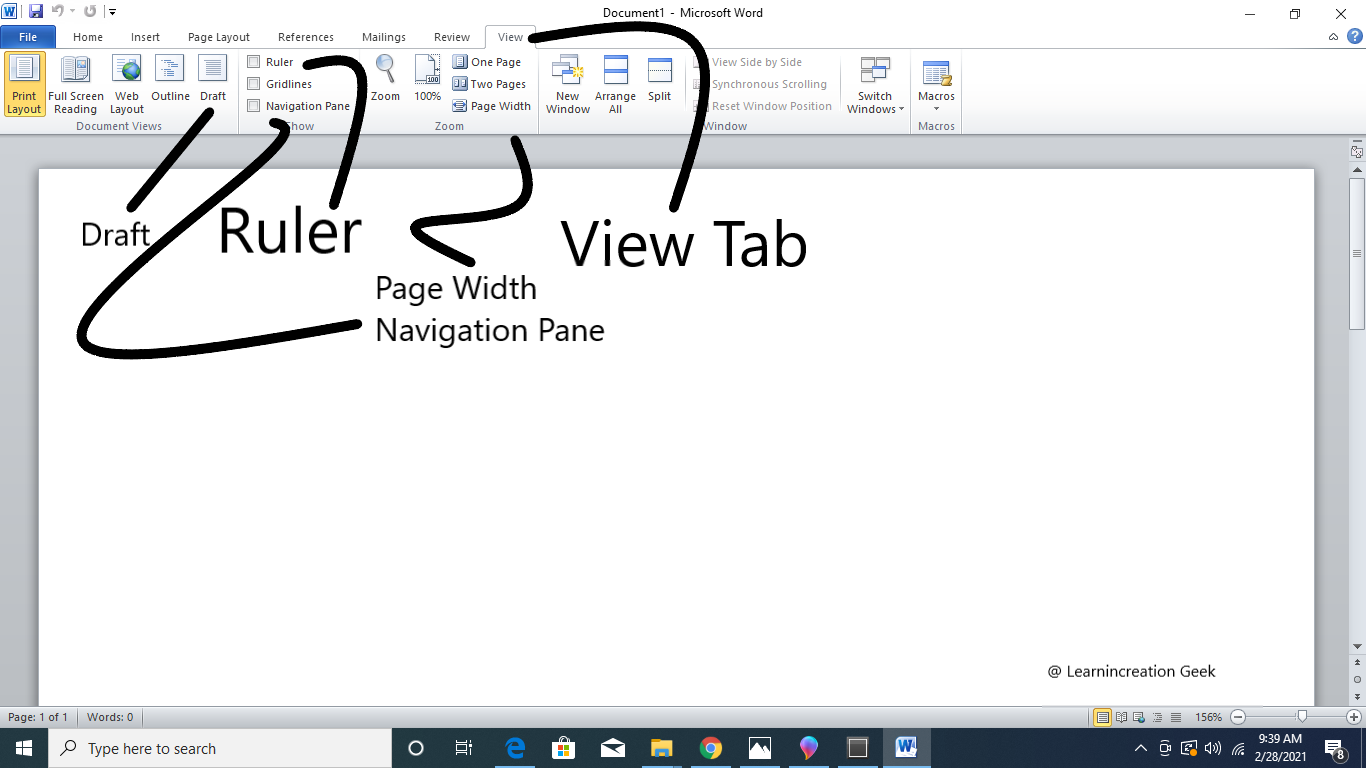
In this section , we learn about How to Customize Quick Access Toolbar –
The ruler allows us to change the format of document quickly by changing its alignment and so on. It’s located below the main toolbar. If you doesn’t see the ruler and want to display it then follow these steps-
You can change the tab setting of ruler bar, following symbol represent the each types of tabs setting. You learn more about tabs setting in Tab section.
To set the left aligned tab. Right tabs – To set the right aligned tabs.
To set the centered tabs.
To set the decimal aligned tabs.
To insert the verticals line in the paragraph.
Text Area is an area assigned to write document text which located below the ruler bar and it’s white in color. The blinking cursor (vertical lines) is present in text area to type the documents.

Vinay Bhatt is the Founder of LearnInCreation, an education and technology platform focused on making computer science and digital learning simple, practical, and accessible. He holds a B.Sc. degree from Kumaun University and has professional certifications in Full Stack Web Development, Digital Marketing, and Ethical Hacking. Passionate about education and technology, he creates beginner-friendly courses, practical learning resources, and projects that help students develop real-world skills and prepare for their careers.


LearnInCreation helps students learn computer science and technology through easy-to-understand courses, practical projects, books, e-books like learning resources, enabling them to build skills for academic success and future careers.
Watch old videos of computer lessons, Subscribe us on Youtube