Lesson 16 - Drawing Shape in Word
- Home
- / Microsoft Word - Advanced
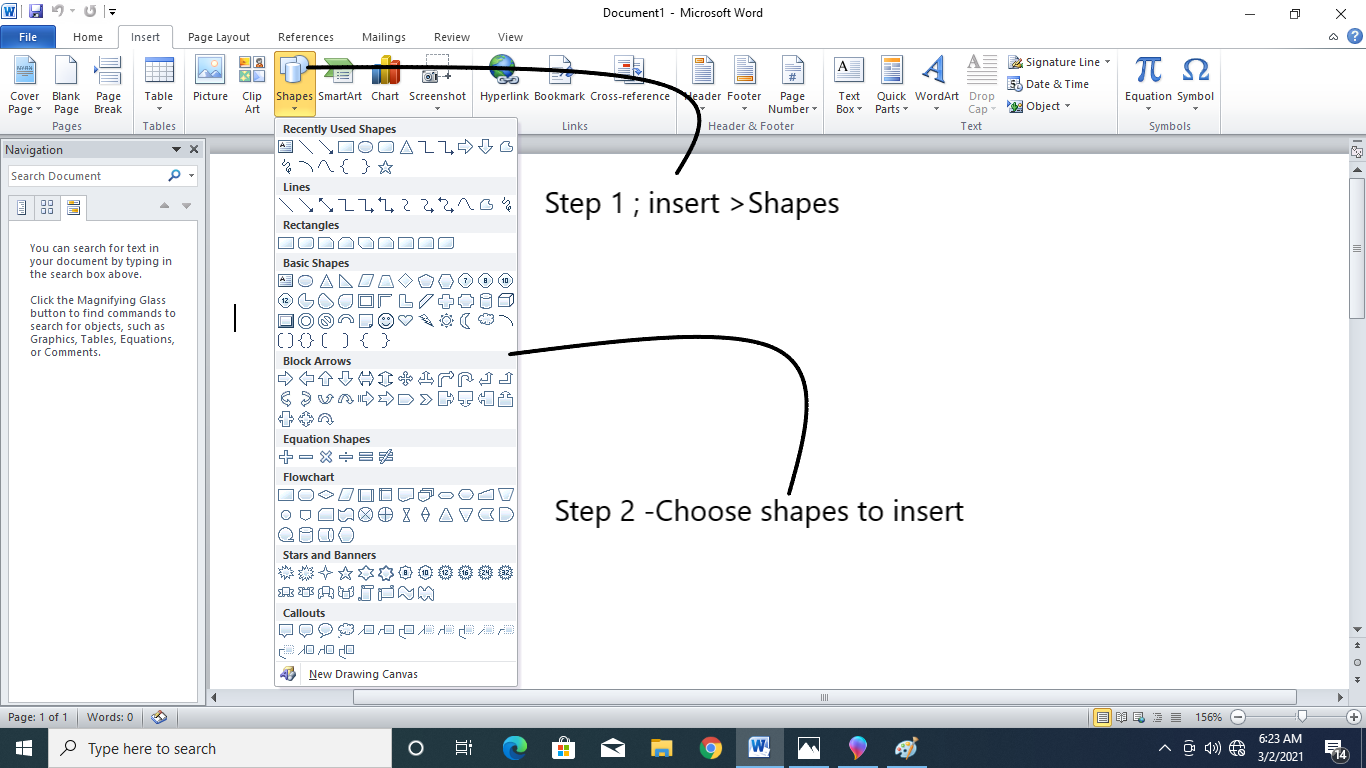
Along with picture or images you can also add or insert the variety of shapes to amplify your message. Word allow you to add the shape of stars, circle, square, arrows and much more.
Simply, to add shape in documents, first click on Insert, and then on Shapes command.
A drop down menu is appeared. Select the desired shape. Click, hold and drag it to the desired location to add the shape in the documents.
To resizing it, first select the shape and then click hold and drag the sizing holders, when it appears. You can use corner holder to resizing the shape.
You can also rotate the shape if you want. To rotate a shape you must click, hold and drag the rotator lever.
Sometimes, in some places you need to insert more than one shape. So in that case shape will insert on one another and overlap each other. In order to put them in right manner you need to change the order of shape to moved it in front or in behind. There are some step you need to follow –

Vinay Bhatt is the Founder of LearnInCreation, an education and technology platform focused on making computer science and digital learning simple, practical, and accessible. He holds a B.Sc. degree from Kumaun University and has professional certifications in Full Stack Web Development, Digital Marketing, and Ethical Hacking. Passionate about education and technology, he creates beginner-friendly courses, practical learning resources, and projects that help students develop real-world skills and prepare for their careers.


LearnInCreation helps students learn computer science and technology through easy-to-understand courses, practical projects, books, e-books like learning resources, enabling them to build skills for academic success and future careers.
Watch old videos of computer lessons, Subscribe us on Youtube