Lesson 23 - Hyperlink Your Document
- Home
- / Microsoft Word - Advanced
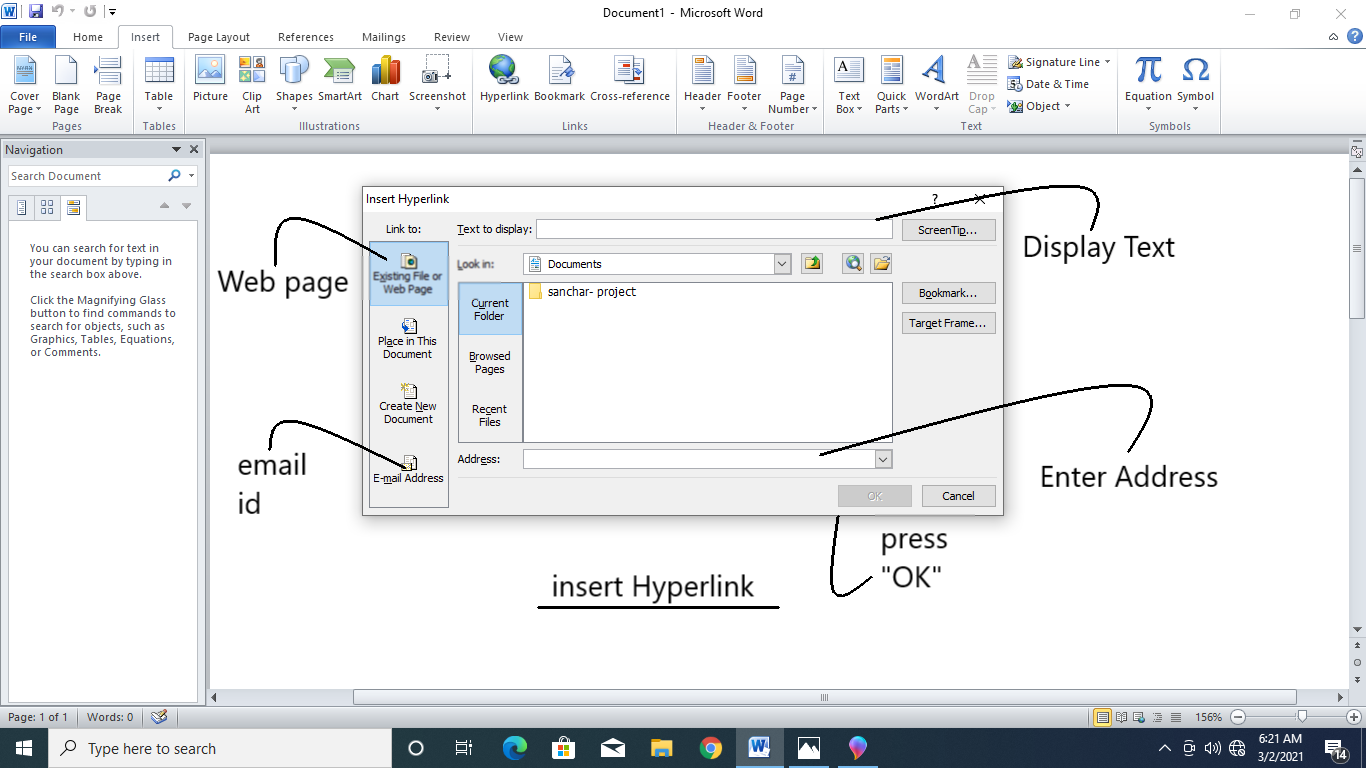
Hyperlink are used to create a link of websites and email address which can directly access from document. Hyperlink are created with the help of two things –
If you are creating a document and you need to add your e-mail address for any question or queries, so your e-mail can be input as - youremail@example.com (address) but if you want to display some text like - mail me instead to full web or email address then it can be done by using Display text.
If you don’t want to use display text for web addresses or email then you simply add the hyperlink just by typing your web address and hit the “Spacebar”.
If you want to insert Hyperlinks then follow these simple steps –

Vinay Bhatt is the Founder of LearnInCreation, an education and technology platform focused on making computer science and digital learning simple, practical, and accessible. He holds a B.Sc. degree from Kumaun University and has professional certifications in Full Stack Web Development, Digital Marketing, and Ethical Hacking. Passionate about education and technology, he creates beginner-friendly courses, practical learning resources, and projects that help students develop real-world skills and prepare for their careers.


LearnInCreation helps students learn computer science and technology through easy-to-understand courses, practical projects, books, e-books like learning resources, enabling them to build skills for academic success and future careers.
Watch old videos of computer lessons, Subscribe us on Youtube