Mon to sat Open: 10am - 6pm

Lesson 17 - Find & Replace

  • Home
  • / Microsoft Word - Advanced
ms-word-image

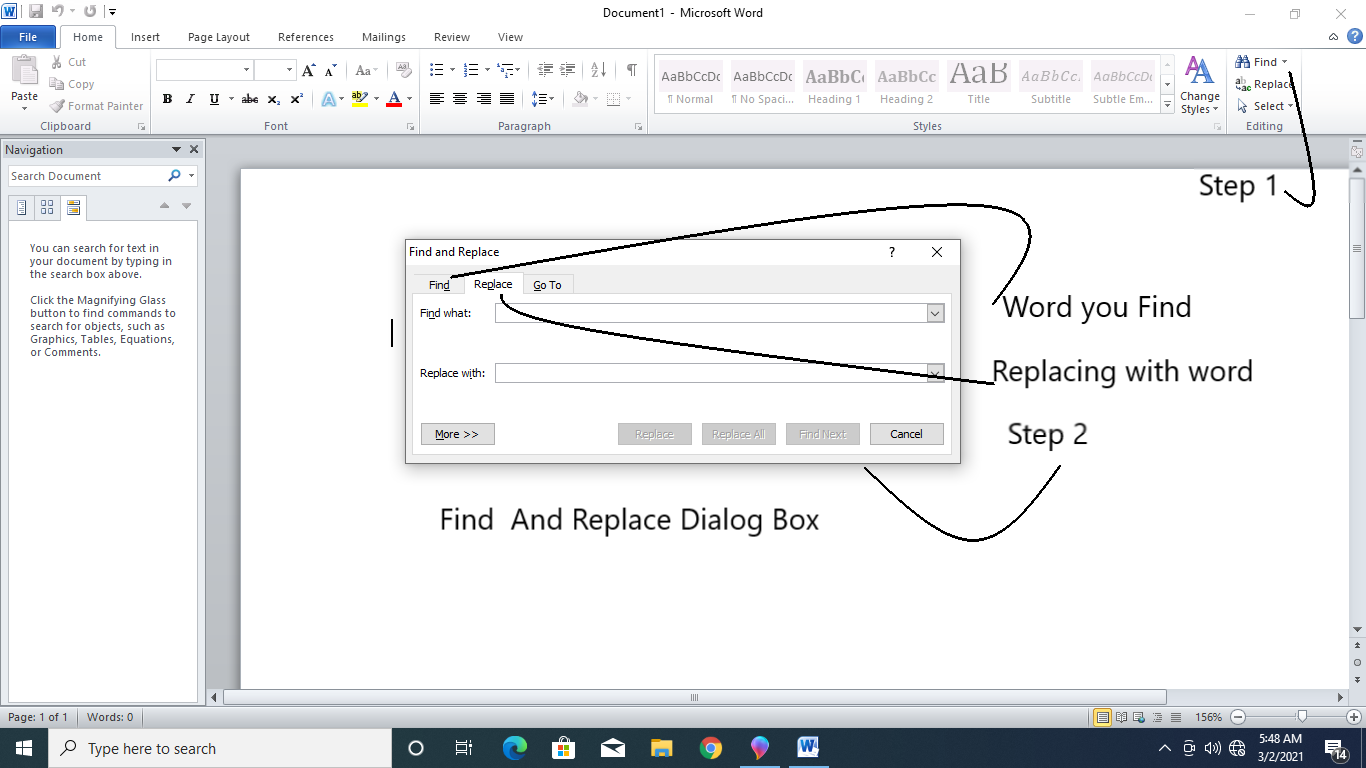
Find and Replace


The “Find” command helps us to find specific word from the text. Also if in a documentary project you just misspelled any word which comes repeated times so it a long path to figure out it manually and delete and then type the correct one. So in that case it’s good to use “Replace” command.

So follow these steps to find out and to replace the specific word or text.


Find –


To find a specific word or text –

  1. 1. Select the entire paragraph or document where you wish to find out.
  2. 2. Click on Find button (located in upper right corner in Home menu).
  3. 3. Type your word you wish to find out.
  4. 4. Click on ‘Find Next’ (help to see or highlight the same word written on another place.)


There is an another way to find out the word from para –

  1. 1. Press Ctrl + F key to activate find command.
  2. 2. Type a specific text you wish to find.
  3. 3. Follow the button “Find Next” if you want to figure out the same word in entire documents unless close the dialog box.


Replace –


So above you read about finding specific text or word here you read about replacing text or word. There is two method to replace your word or text

  1. 1. Highlight the text.
  2. 2. Click on ‘Replace’ command in Home menu.
  3. 3. Type a word in ‘Find what’ box you wish to replace.
  4. 4. Type your word in ‘Replace with’ box so it can be replace with earlier one.
  5. 5. Click on Replace (If you want to replace it only once in a document.) or Replace all (If you wish to replace the word from entire documents.)
  6. 6. Click on Close.


Second and easiest way to replace your text from document is to –

  1. 1. Press Ctrl + H to open the Replace dialog box.
  2. 2. Enter your word in Find what or in Replace with box.
  3. 3. Hit Replace or Replace all (according to your wish)
  4. 4. Close the dialog box.


About the author

vinay-bhatt-image

Vinay Bhatt

Vinay Bhatt is the Founder of LearnInCreation, an education and technology platform focused on making computer science and digital learning simple, practical, and accessible. He holds a B.Sc. degree from Kumaun University and has professional certifications in Full Stack Web Development, Digital Marketing, and Ethical Hacking. Passionate about education and technology, he creates beginner-friendly courses, practical learning resources, and projects that help students develop real-world skills and prepare for their careers.


Course Lesson -

Introduction, Working With Paragraph, Cut Copy and Paste, Paragraph Spacing, What is Line Spacing, First Line Indent, Header and Footer, Remove Header and Footer, The Designing Tab, Show and Hide, Insert Date and Time, Insert Page Number, Indent Marker, Tabs, Text Alignment, Drawing Shapes in Word, Find and Replace, Font Size and Style, Subscript and Superscript, Strike Through, Use Spell Checker, Textbox and WordArt, Hyperlink in Word Document, Add Email in Document, Indent and Tab, Smart Art,

Join Learnincreation Study Center

Join LearnInCreation Study Center to learn practical computer and technology skills through simple lessons and hands-on training. Choose from Computer Basics, MS Office, Programming, Web Designing, Digital Marketing, and more. Get guidance, practice your skills, and prepare for your future. Visit our study center and enroll today!