Lesson 4 - Paragraph Spacing
- Home
- / Microsoft Word - Advanced
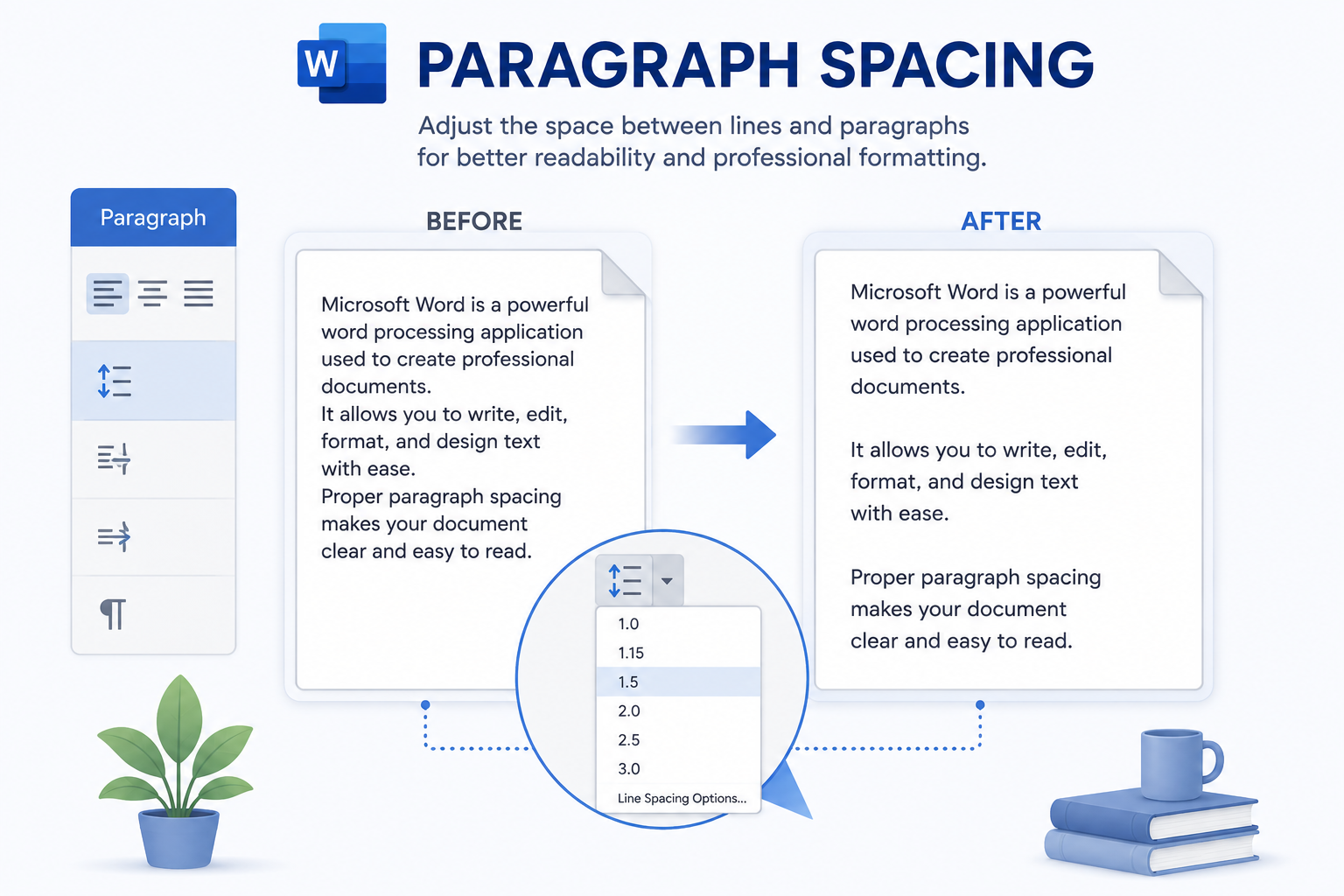
When you complete one paragraph in Word, you simply press Enter key to change the paragraph, by default, Enter key helps you to change the line and cursor moves to next line with some space.
It’s a space between two paragraphs which was set by MS-Word itself, by default. You can maximize or minimize this space between two paragraphs as per your wish or requirement.
MS-Word allow you to increase or decrease the space before or space after as per your requirement.
Space before indicate the space you assigned before the paragraph while space after indicate the amount of space you give after the paragraph.
Follow these steps to adjust the space –
To set space before and after the paragraph or between lines (for more control on paragraph spacing and line spacing) you can select Line Spacing Option from the drop down list of Line and Paragraph Spacing.
On clicking Line Spacing Option a new dialog box is open with more option and gives you more control over spacing.

Vinay Bhatt is the Founder of LearnInCreation, an education and technology platform focused on making computer science and digital learning simple, practical, and accessible. He holds a B.Sc. degree from Kumaun University and has professional certifications in Full Stack Web Development, Digital Marketing, and Ethical Hacking. Passionate about education and technology, he creates beginner-friendly courses, practical learning resources, and projects that help students develop real-world skills and prepare for their careers.


LearnInCreation helps students learn computer science and technology through easy-to-understand courses, practical projects, books, e-books like learning resources, enabling them to build skills for academic success and future careers.
Watch old videos of computer lessons, Subscribe us on Youtube