Mon to sat Open: 10am - 6pm

Lesson 22 - Textbox and WordArt

  • Home
  • / Microsoft Word - Advanced
textbox-and-wordart

Text Box and WordArt –


A text box in a document is used to get an attention to specific text. It’s also very useful when you need to move the text in a document. You can format the text within text box with the help of WordArt.


Inserting Text Box –


  1. 1. Place the cursor at the point of inserting a text box.
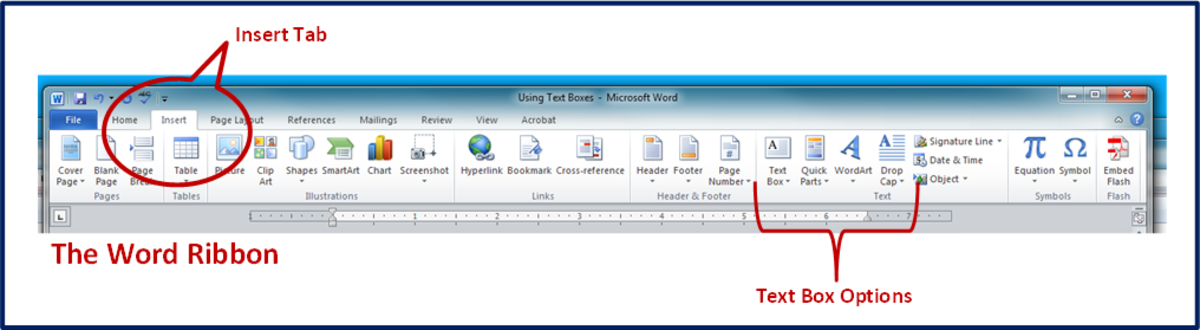
  2. 2. Go to Insert tab and click on command of Text box under Text section.
  3. 3. Its shows you the menu with a template of text box, choose any one of your choice and select it.
  4. 4. If you want to draw your own text box then, click on Draw Text box option under Text box command.
  5. 5. You will get a cursor of plus sign. Click on the document where you want to draw a text box.
  6. 6. On clicking you will get a text box, you just need to adjust its size (resize) by dragging on its sides and corners knob.
  7. 7. Type your desired text one you done with adjusting a size.
  8. 8. Change the font, size, color etc. of your text after selecting it.
  9. 9. You can also use the WordArt to format your text.
  10. 10. A new tab of Format is appear which allows you to do more editing with your text and text box.
  11. 11. Once you finish your editing, click outside the box.

You can change the position of your text box just by moving it within a document, to move your text box place your cursor at the edge of text box and its change to the plus sign with arrow. Click, Hold and Drag the cursor to your desired location.


About the author

vinay-bhatt-image

Vinay Bhatt

Vinay Bhatt is the Founder of LearnInCreation, an education and technology platform focused on making computer science and digital learning simple, practical, and accessible. He holds a B.Sc. degree from Kumaun University and has professional certifications in Full Stack Web Development, Digital Marketing, and Ethical Hacking. Passionate about education and technology, he creates beginner-friendly courses, practical learning resources, and projects that help students develop real-world skills and prepare for their careers.


Course Lesson -

Introduction, Working With Paragraph, Cut Copy and Paste, Paragraph Spacing, What is Line Spacing, First Line Indent, Header and Footer, Remove Header and Footer, The Designing Tab, Show and Hide, Insert Date and Time, Insert Page Number, Indent Marker, Tabs, Text Alignment, Drawing Shapes in Word, Find and Replace, Font Size and Style, Subscript and Superscript, Strike Through, Use Spell Checker, Textbox and WordArt, Hyperlink in Word Document, Add Email in Document, Indent and Tab, Smart Art,

Join Learnincreation Study Center

Join LearnInCreation Study Center to learn practical computer and technology skills through simple lessons and hands-on training. Choose from Computer Basics, MS Office, Programming, Web Designing, Digital Marketing, and more. Get guidance, practice your skills, and prepare for your future. Visit our study center and enroll today!